Remote Control - LG Sound Suite AI H7 Wi-Fi SOUNDBAR
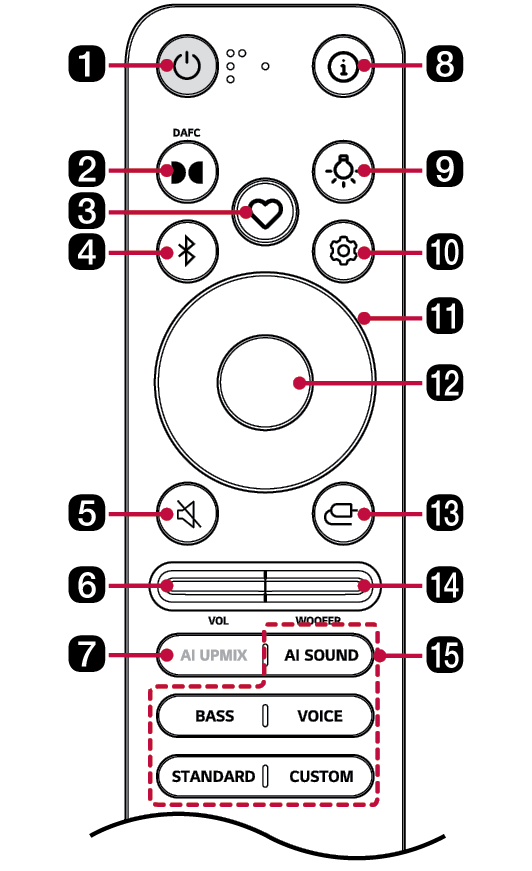
You can use the remote to control all functions of the product, from turning the power on/off to enabling cinematic sound.
|
a |
Power Turns the product on/off. |
|
b |
Dolby Atmos FLEXCONNECT status Displays the Dolby Atmos FLEXCONNECT connection status on the display window. |
|
c |
MY
|
|
d |
Bluetooth pair It allows you to pair your Bluetooth device such as a smartphone to this product for one minute. ([ See “Connecting via Bluetooth”) |
|
e |
Mute This turns off the sound from the product. |
|
f |
Volume Adjusts the sound volume. |
|
g |
AI UPMIX Uses artificial intelligence to analyze sound and add virtual channels to improve sound quality. |
|
h |
Information Press the button to show the information such as codec name, file name or service name on the display window. |
|
i |
Lighting Press the button to turn the ambient lighting on or off. ([ See “Using Ambient lighting”) |
|
j |
Settings It allows you to adjust the settings of this product: SOUND TUNING, NIGHT TIME, DISPLAY. Press Settings
|
|
k |
Up/Down/Left/Right These buttons are used to adjust the settings of the convenient functions.
Up/Down: This scrolls through the folders on the USB storage device. You can press the button to select the desired folder. Left/Right: To play the previous song, press Left button. To play the next song, press Right button. |
|
l |
Play/Pause To play or pause a song, press this button. |
|
m |
Source Press the button repeatedly to select the desired input mode or function. |
|
n |
Subwooofer Volume Adjusts the subwoofer volume level. |
|
o |
Sound Effects Press the button to select a desired sound effect.
|





Replacement of Battery
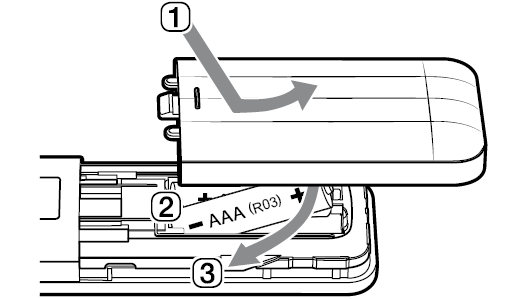
Use AAA 1.5V batteries. Replace the two batteries by inserting them into the remote control in accordance with the directions indicated.
- A Open the battery cover on the back of the remote control.
- B Insert the batteries with the + and – ends corresponding to the markings.
- C Close the battery cover.
|
|
|
> CAUTION |
|
Risk of fire or explosion if the battery is replaced by an incorrect type. |

Installation