Sound Bar Quick Guide
Connecting with an Optical Cable
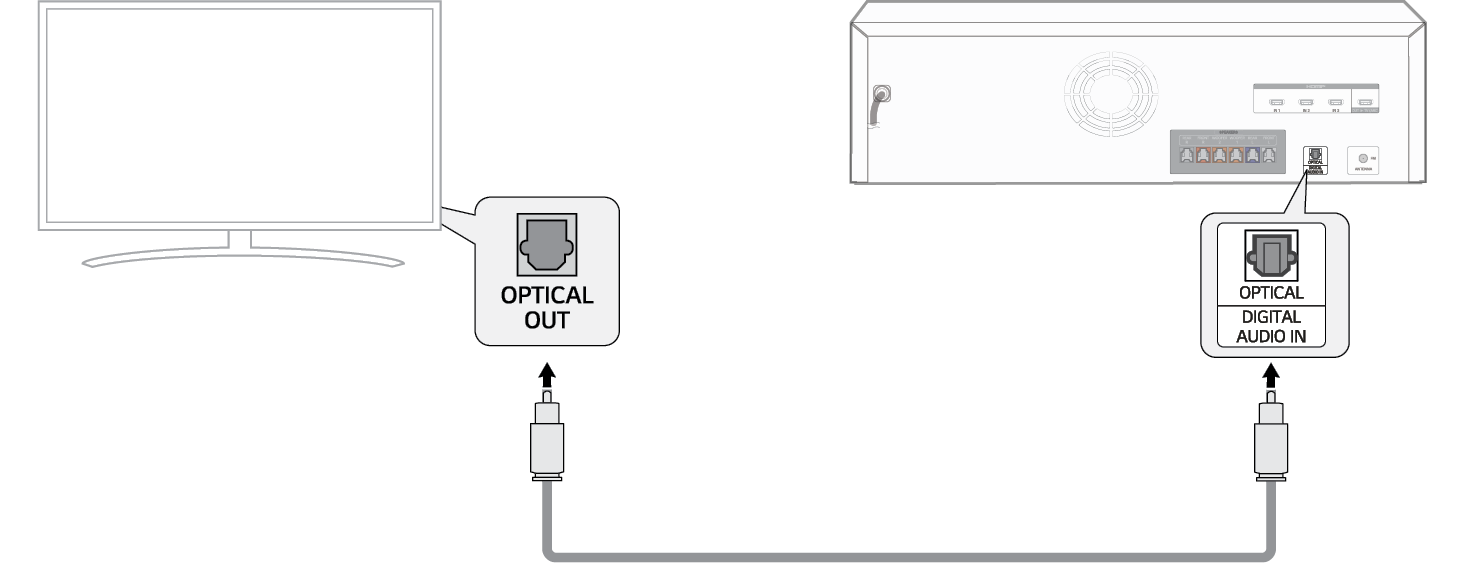
Transmit your TV’s audio to the product by connecting it to the TV with an optical cable. You can add a variety of 3D effects to the original audio to fill the room with a deep, rich sound.
Watching TV after connecting with an optical cable
- a If the digital cable terminal has a cover, first remove the covers from both ends.


- b Using an optical cable, connect the OPTICAL (DIGITAL AUDIO IN) terminal on the back of the receiver to the Optical Digital Output (OPTICAL OUT) terminal on the TV as shown in the picture.

-
c Press the Function
 button repeatedly until “OPT/HDMI ARC” appears on the status display.


- d Press the Settings button on the TV remote control to enter the [Speaker] menu and set the output speaker to [Optical] or [External Speaker]. Settings and menu items may vary depending on the TV manufacturer.
|
|
|
|
|


When you use an LG TV (LG Sound Sync)
You can adjust the volume with the LG TV remote control if the TV is connected to the product with an optical cable. You can only do so on a TV that supports the LG TV Sound Sync function. Check your TV’s user manual to see if your TV is supported.
Functions controllable with an LG TV remote control
Volume, mute on/off
|
|
|
|
|


Connecting to an External Device