Product

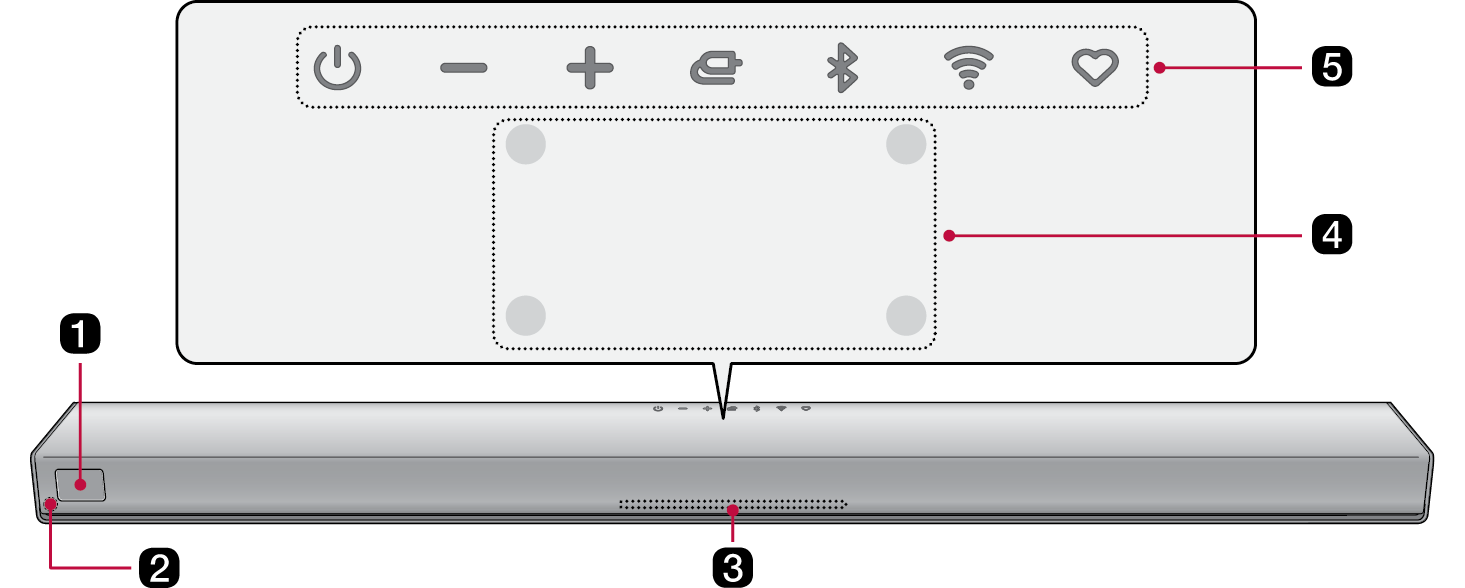
Front

2026 LG Sound Suite H7 Wi-Fi SOUNDBAR Product Front

a

Display Window

Displays the status of the product.

b

Remote Control Receiver

This receives wireless signals from the remote control.

c

Lighting indicator

Options such as input mode and volume light up. ([ See “Lighting Indicator”)

d

Built-in microphone

This is used when operating the Dolby Atmos FLEXCONNECT calibration.

e

Power 132739.png

This turns the product on/off.

  • If you press and hold the Power 144430.png button for more than 3 seconds when turning off the product, the Wi-Fi connection will be deactivated. To maintain the Wi-Fi connection, briefly press the Power 144436.png button to turn off the product.

Volume 132781.png 132771.png

Adjusts the sound volume.

Source 132757.png

Press the button repeatedly to select the desired function or input mode.

  • HDMI ARC: Connects the product to a TV that supports an ARC or E-ARC.
  • Wi-Fi: Connects the product via Wi-Fi.
  • Bluetooth: Connects the product via Bluetooth.
  • USB: Connects the product to a USB storage device.

Bluetooth pair 132791.png

It allows you to pair your Bluetooth device such as a smartphone to this product for one minute. ([ See “Connecting via Bluetooth”)

Wi-Fi 132811.png

It goes to the Wi-Fi function directly.

MY 126589.png

  • Press the button to use the MY functions. ([ See “Using MY function”) Before using MY functions, set up in the LG ThinQ app.
  • Press the button twice to use Room Calibration Pro. The speaker sound is optimized for your listening space. ([ See “Using Room Calibration Pro”)

92272.png

92267.png Note

  • To reduce power consumption, the product will automatically turn off after 15 minutes of no input signal from an external device.
  • The microphone is used solely for audio functionality and does not collect the user’s sound.

Lighting Indicator

Power on / Power off

151877.png

  • When the power is turned on, the lighting indicator lights up amber.
  • The color of the lighting indicator may differ depending on the selected source.

151885.png

  • When the power is turned off, the middle of the lighting indicator lights up white.
  • Currently in standby mode. The product is ready to receive signals or establish network connection.

151898.png

  • When the power is turned off, the lighting indicator turns off.
  • Currently powered off. Press the Power 153792.png button briefly to start using the product.

Volume Adjustment

141373.png

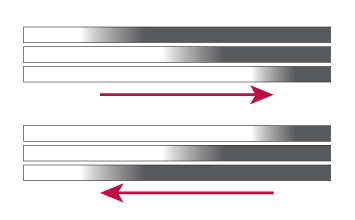
  • Volume up: The lighting indicator enlarges to the right.
  • Volume down: The lighting indicator reduces to the left.
  • If you press Volume 146776.png 146770.png button when the level has reached the maximum or minimum, the lighting indicator will blink 3 times.

Source

141381.png

HDMI ARC

The lighting indicator lights up white.

141342.png

Wi-Fi ready

The lighting indicator blinks green.

141332.png

Wi-Fi connected

The lighting indicator lights up green.

Apple AirPlay, Spotify, Tidal connect

When playing music via Apple AirPlay, Spotify, or Tidal Connect, the lighting indicator lights up green.

141308.png

Bluetooth ready

The lighting indicator blinks blue.

141299.png

Bluetooth connected

The lighting indicator lights up blue.

145133.png

USB storage mode ready

The lighting indicator blinks amber.

156114.png

USB storage connected

The lighting indicator blinks amber and then turns off.

156143.png

Room Calibration Pro in progress

The lighting indicator displays dynamic, multicolored light animations.

156133.png

Room Calibration Pro completed

The lighting indicator lights up with multicolored lighting.

147108.png

147103.png Note

  • Press the Lighting 147131.png button on the remote control to turn the lighting indicator on or off.
  • You can adjust the brightness of the lighting indicator by using the LG ThinQ app.
  • Once the connection is complete, the lighting Indicator will light up white only when the product is in networked standby mode.