Connecting with the product via LG ThinQ app
LG ThinQ app allows you to connect the product to the network and to control the product.
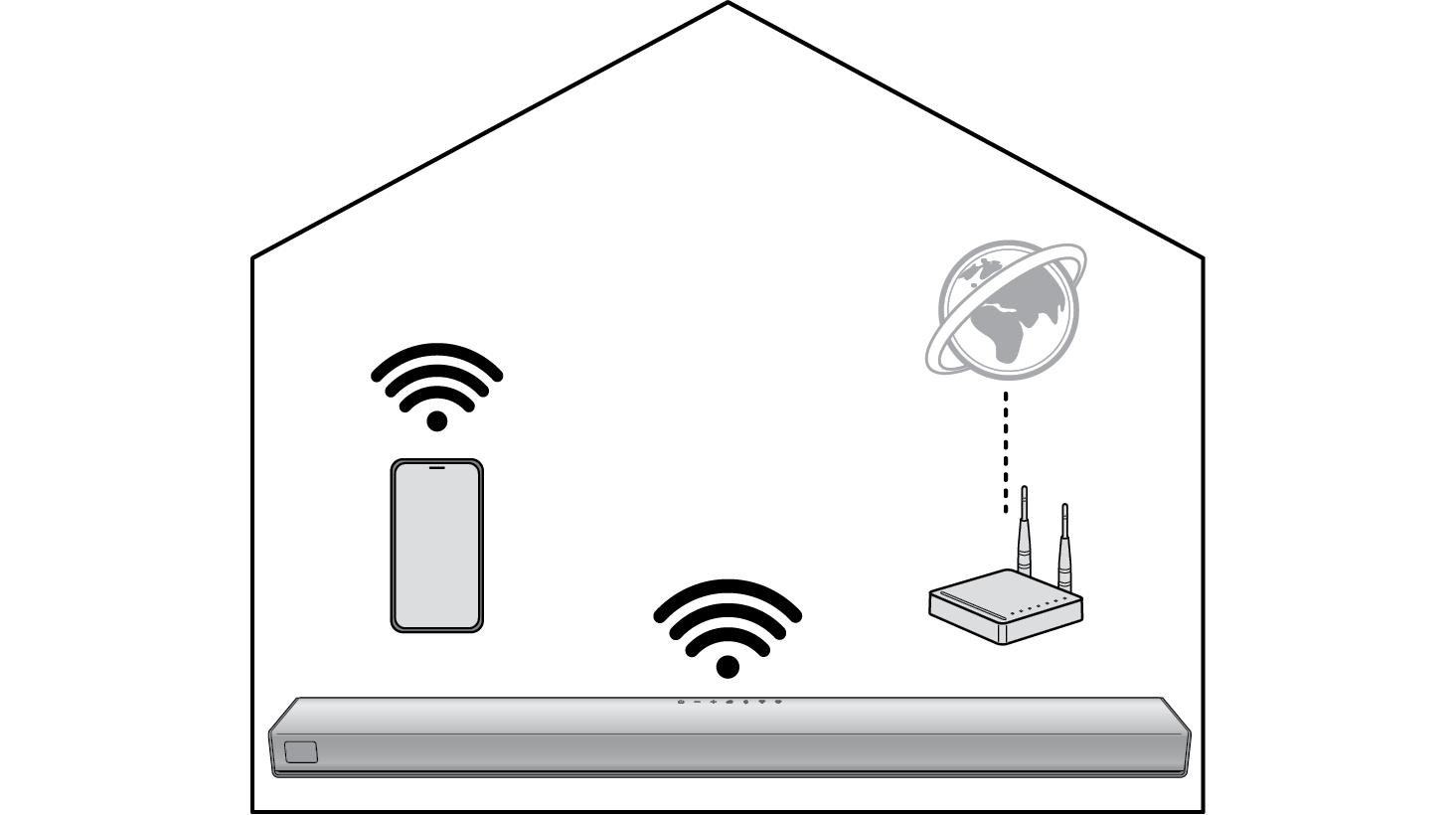

Please check the following first.
- • Do you have a wireless router?
- - To connect your smartphone and the product via Wi-Fi, you must have a wireless router that is connected to the internet.
- - Make sure that they are both connected to the same Wi-Fi network.
- - If the wireless router signal is weak, it may not be able to connect. Move the router closer to the product or reposition it away from obstacles.
- • Does your smartphone have Bluetooth enabled?
- - Enable Bluetooth on your smartphone.
- - If Bluetooth is enabled, you can easily connect to Wi-Fi. If Bluetooth is disabled, the product may not be registered on the LG ThinQ app.
- • The LG ThinQ app is available in the versions listed below.
- - Android™ OS: Version 9.0 or higher
- - iOS OS: Version 16.0 or higher
- - Minimum supported versions for each OS may change later.
Installing the LG ThinQ app and registering the product
- a Go to the Google Play or the App Store on your smartphone and search for the LG ThinQ app to install it.
- b Run the LG ThinQ app and log in to the app with your account. If you don’t have an account, you can also create a new one.
- c Press the add (o) button and follow the on-screen instructions in the LG ThinQ app to register your Sound Suite products.
|
|
|
|
|

