Sound Bar Quick Guide
Exploring Remote Control
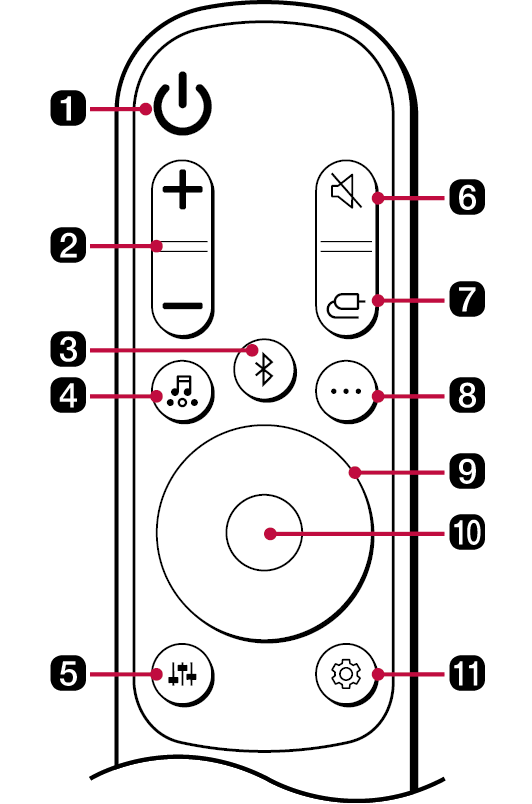
You can use the remote to control all functions of the product, from turning the power on/off to enabling cinematic sound.
Replacement of Battery
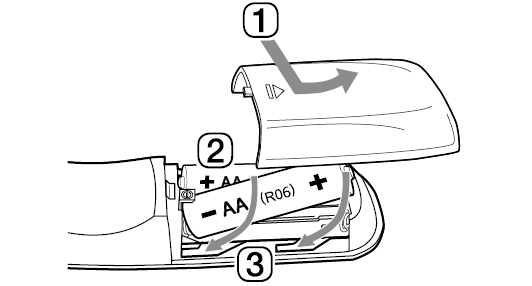
Use AA 1.5V batteries. Replace the two batteries by inserting them into the remote control in accordance with the directions indicated.
- A Open the battery cover on the back of the remote control.
- B Insert the batteries with the + and – ends corresponding to the markings.
- C Close the battery cover.
Risk of fire or explosion if the battery is replaced by an incorrect type.
|
a |
Power Turns the product on/off. |
|
b |
Volume Adjusts the sound volume. |
|
c |
Bluetooth pair It allows you to pair your Bluetooth device such as a smartphone to this product for three minutes. ([ See “Connecting via Bluetooth” on page 28.) |
|
d |
Sound Effects Press the button to select the desired sound field.
|
|
e |
Sound Tuning This adjusts the sound level of the connected speaker. Press the Sound Tuning
|
|
f |
Mute This turns off the sound from the product. |
|
g |
Function Press the button repeatedly to select the desired input mode or function. |
|
h |
Information View the connected input source or Bluetooth information.
|
|
i |
Up/Down/Left/Right These buttons are used to adjust the settings of the convenient functions.
Up/Down: This scrolls through the folders on the USB storage device. You can press the button to select the desired folder. Left/Right: To play the previous song, press Left button. To play the next song, press Right button. |
|
j |
Play/Pause To play or pause a song, press this button.
|
|
k |
Settings It allows you to adjust the settings of this product: AUTO POWER, SURROUND, NIGHT TIME, DISPLAY. Press Settings
|





This function automatically turns the product on or off when the TV or external device is turned on or off.
When the connected device is turned on, the product turns on automatically and selects a function according to the input signal.
Activating/Deactivating the Auto Power function
-
a Press Settings
 button. The product enters the setting mode and you can see “OFF-AUTO POWER” or “ON-AUTO POWER”.


- b While the “OFF-AUTO POWER” or “ON-AUTO POWER” is scrolling in the status display, press Up/Down button to turn on or off the Auto Power function.


How to deactivate the wireless network connection(s).
Set up the Auto Power function to off and turn off the product.
This reduces the general sound volume, but raises the volume of soft and delicate sounds. This is useful when enjoying music or a movie late at night.
Activating/Deactivating the Night Time function
-
a Press Settings
 button. The product enters the setting mode and you can see “OFF-AUTO POWER” or “ON-AUTO POWER”.


- b While the “OFF-AUTO POWER” or “ON-AUTO POWER” is scrolling in the status display, press Left/Right button to select the Night time setting. You can see the status of the Night time, “ON-NIGHT TIME” or “OFF-NIGHT TIME”.


- c While the “ON-NIGHT TIME” or “OFF-NIGHT TIME” is scrolling in the status display, press Up/Down button to turn on or off the Night time.


The status display can be controlled as auto, on, and off.
|
Option |
Status display |
|
AUTO |
Dimmed after 20 seconds of button input. |
|
ON |
Always on |
|
OFF |
Turned off after 20 seconds of button input. |
Activating/Deactivating the Display function
-
a Press Settings
 button. The product enters the setting mode and you can see “OFF-AUTO POWER” or “ON-AUTO POWER”.


- b While the “OFF-AUTO POWER” or “ON-AUTO POWER” is scrolling in the status display, press Left/Right button to select the Display setting. You can see the status of the Display, “AUTO-DISPLAY”, “ON-DISPLAY” or “OFF-DISPLAY”.


- c While the “AUTO-DISPLAY”, “ON-DISPLAY” or “OFF-DISPLAY” is scrolling in the status display, Press Up/Down button to change the Display to “AUTO” or turn it on or off.


Connecting to the TV