Sound Bar Quick Guide
Connecting the Product
You can enjoy a richer sound by connecting the sound bar to the wireless subwoofer and wireless rear speakers.
Connecting the wireless subwoofer and wireless rear speakers automatically
After completing installation, the wireless subwoofer and wireless rear speakers will automatically be connected to the sound bar. Connect the sound bar to the subwoofer and wireless rear speakers in the following order.
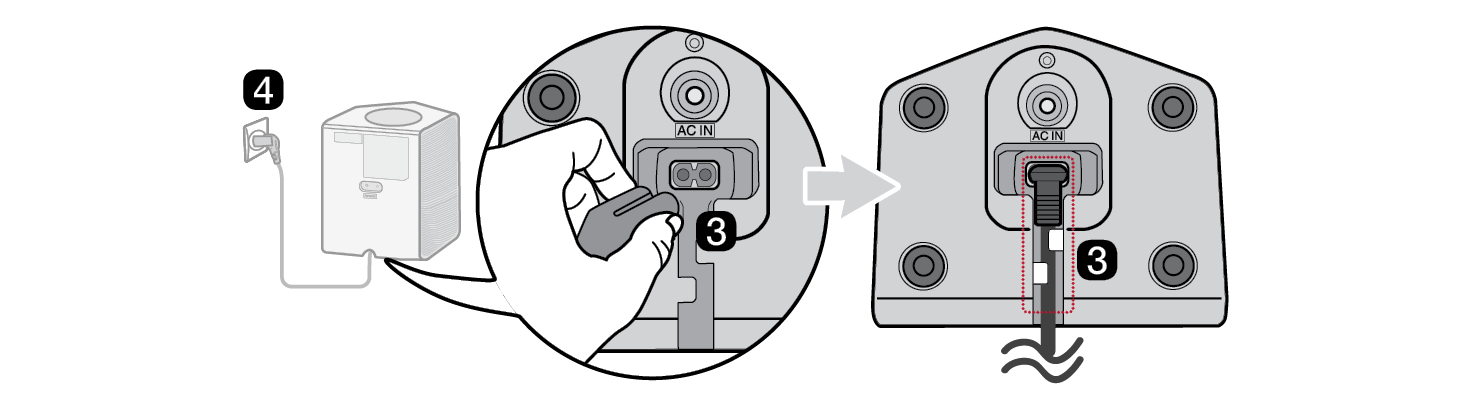
- a Plug the power cable into the wireless subwoofer.
- b Plug the power cable connected to the wireless subwoofer into an outlet.
- c Plug the power cables into the wireless rear speakers and arrange the power cables.
- d Plug the power cables connected to the wireless rear speakers into outlets.


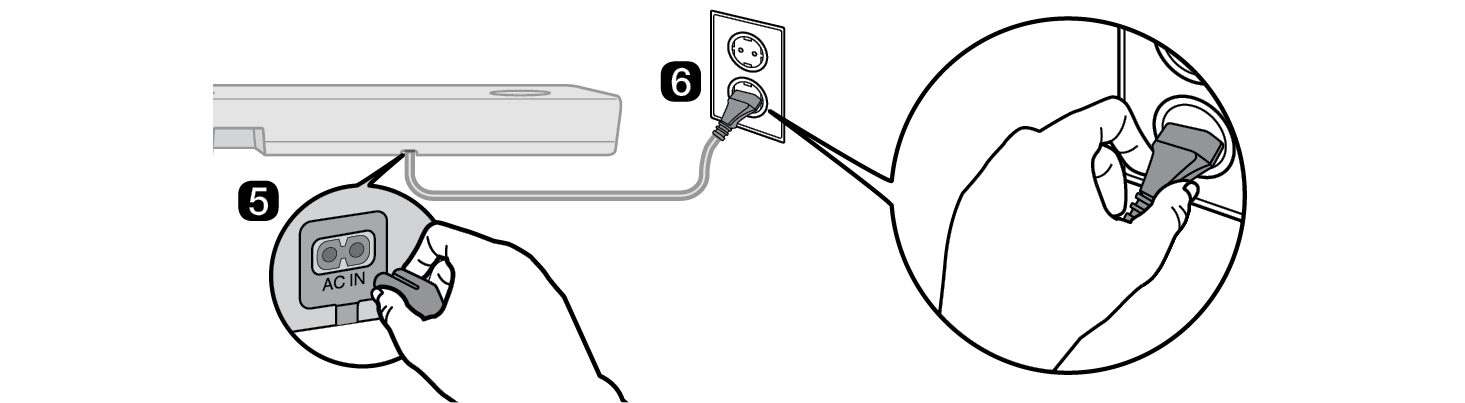
- e Plug the power cable into the sound bar.
- f Plug the power cable connected to the sound bar into an outlet.

- g When the connection is automatically established, you will see the LEDs on the back of the wireless subwoofer and wireless rear speakers light up green.
Checking the connection with the LEDs on the back of the wireless subwoofer and wireless rear speakers
You can check the connection status by looking at the LEDs on the back of the wireless subwoofer and wireless rear speakers.
|
LED Colour |
Status |
|
Blinking green |
Connecting in progress |
|
Green |
Connected successfully |
|
Red |
Bad connection, or the subwoofer or wireless rear speakers are in standby |
|
Off |
Power cable not connected |
Connecting the wireless subwoofer and wireless rear speakers manually
If you see a red LED on the back of the wireless subwoofer or wireless rear speakers, it means that the sound bar is not connected to the subwoofer or wireless rear speakers. If this is the case, connect them in the following order.
-
a Press the Power
 button on the sound bar to turn it off.
 - b Press the PAIRING button on the back of the wireless subwoofer or wireless rear speakers. Check if the LED on the back of the subwoofer or wireless rear speakers is blinking green. If you still see a red LED on the wireless subwoofer or wireless rear speakers, press and hold the button on the back of the subwoofer or wireless rear speakers again.

Connecting the wireless subwoofer manually

Connecting the wireless rear speakers manually

-
c Press the Power
 button on the sound bar to turn it on.
 - d When the connection is established, you will see the LED light on the back of the wireless subwoofer or wireless rear speakers light up green.
|
|
|
|
|



Setting up surround sound
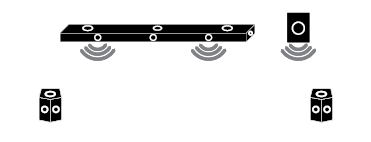
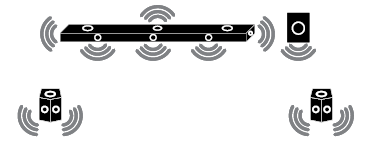
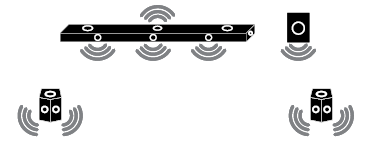
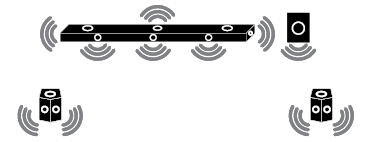
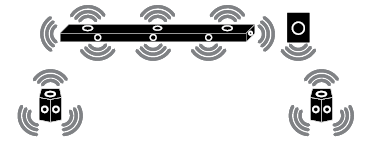
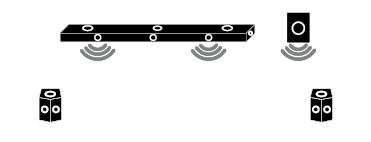
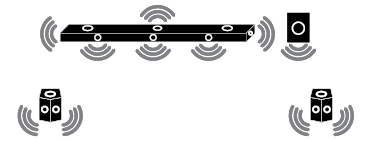
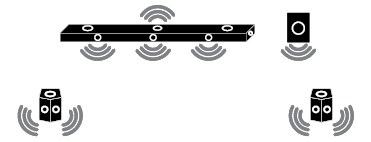
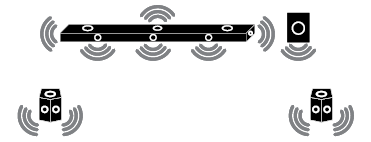
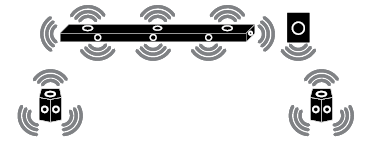
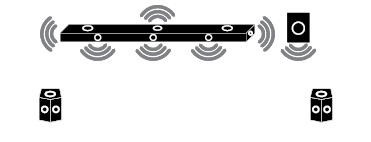
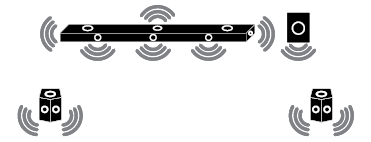
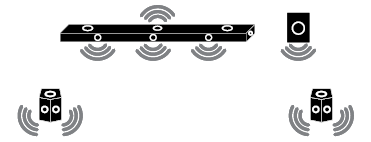
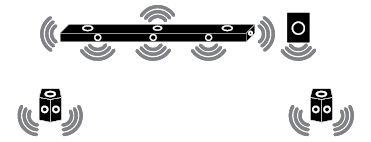
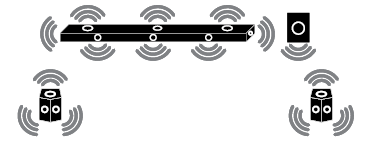
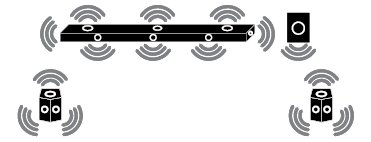
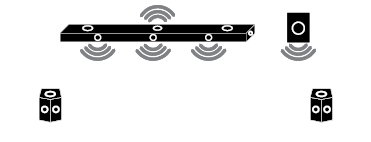
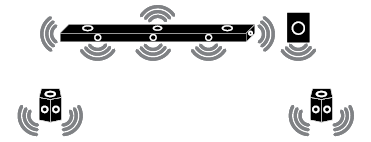
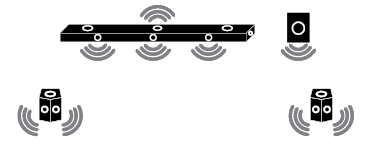
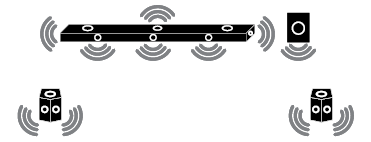
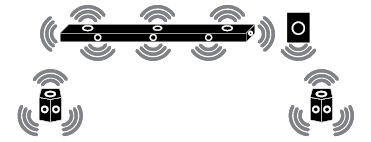
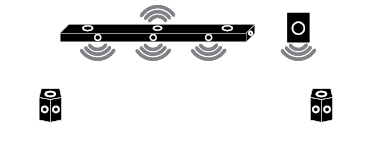
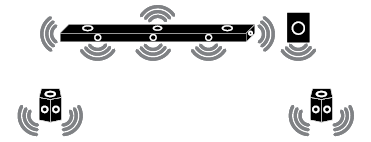
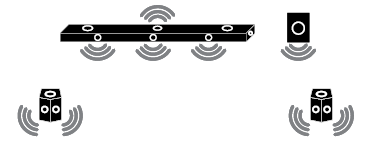
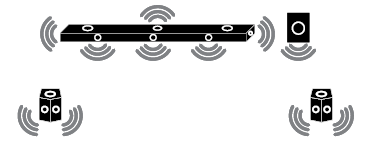
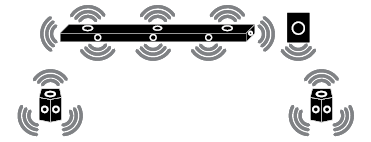
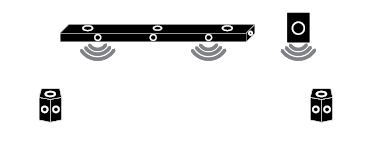
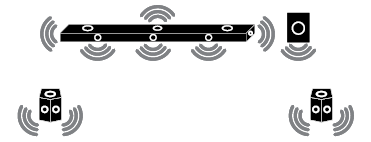
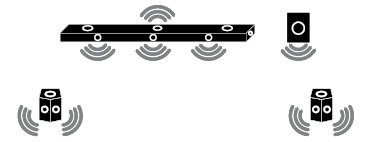
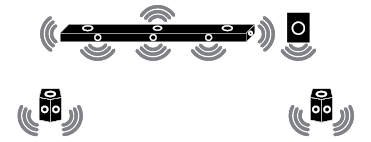
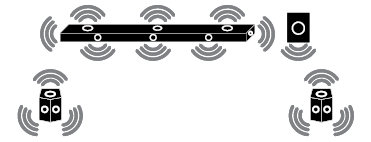
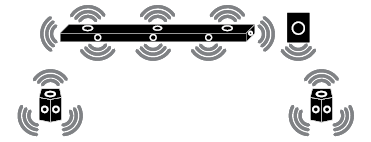
The surround sound function allows you to hear immersive 3D sound produced by multiple audio channels from the speakers, regardless of the channels in the originally recorded content.
For example, if you listen to music recorded in 2.0 channels with standard sound effects while the wireless rear speakers are connected, you can hear the following difference.

When the surround sound is off

When the surround sound is on

|
|
|
|
|


-
a Press Settings
 button. The product enters the setting mode and you can see “OFF-AUTO POWER” or “ON-AUTO POWER”.


- b While the “OFF-AUTO POWER” or “ON-AUTO POWER” is scrolling in the status display, press Left/Right button to select the surround sound setting. You can see the status of the surround sound, “OFF-SURROUND” or “ON-SURROUND”.


- c While the “OFF-SURROUND” or “ON-SURROUND” is scrolling in the status display, press Up/Down button to turn on or off the surround sound.


Speaker sound based on input channels
|
Sound Effects |
|||
|
Input |
Output |
||
|
Rear speakers not connected |
Rear speakers connected |
||
|
AI SOUND PRO Sound customised with artificial intelligence |
|||
|
2.0 channels |
|
|
|
|
5.1 channels |
DTS |
|
|
|
Other |
|
||
|
7.1 channels or more |
|
|
|
|
7.1.4 channels |
|
|
|
|
STANDARD You can enjoy optimised sound. |
|||
|
2.0 channels |
|
|
|
|
5.1 channels |
DTS |
|
|
|
Other |
|
||
|
7.1 channels or more |
|
|
|
|
7.1.4 channels |
|
|
|
|
MUSIC Sound enriched with MERIDIAN technology |
|||
|
2.0 channels |
|
|
|
|
5.1 channels |
DTS |
|
|
|
Other |
|
||
|
7.1 channels or more |
|
||
|
7.1.4 channels |
|
|
|
|
CINEMA Cinematic 3D sound |
|||
|
2.0 channels |
|
|
|
|
5.1 channels |
|||
|
7.1 channels or more |
|||
|
7.1.4 channels |
|||
|
CLEAR VOICE Voice sound clear, improving the quality of voice sound |
|||
|
2.0 channels |
|
|
|
|
5.1 channels |
DTS |
|
|
|
Other |
|
||
|
7.1 channels or more |
|
|
|
|
7.1.4 channels |
|
|
|
|
SPORTS Realistic sound like in a stadium |
|||
|
2.0 channels |
|
|
|
|
5.1 channels |
DTS |
|
|
|
Other |
|
||
|
7.1 channels or more |
|
|
|
|
7.1.4 channels |
|
|
|
|
GAME Optimised sound for game |
|||
|
2.0 channels |
|
|
|
|
5.1 channels |
DTS |
|
|
|
Other |
|
||
|
7.1 channels or more |
|
|
|
|
7.1.4 channels |
|
|
|
|
BASS BLAST (BASS BLAST+) Sound with reinforced bass |
|||
|
2.0 channels |
|
|
|
|
5.1 channels |
|||
|
7.1 channels or more |
|||
|
7.1.4 channels |
|||