Sound Bar Quick Guide
Connecting with a Smartphone via Wi-Fi
LG Soundbar app allows you to connect the product to the network and to control the product.
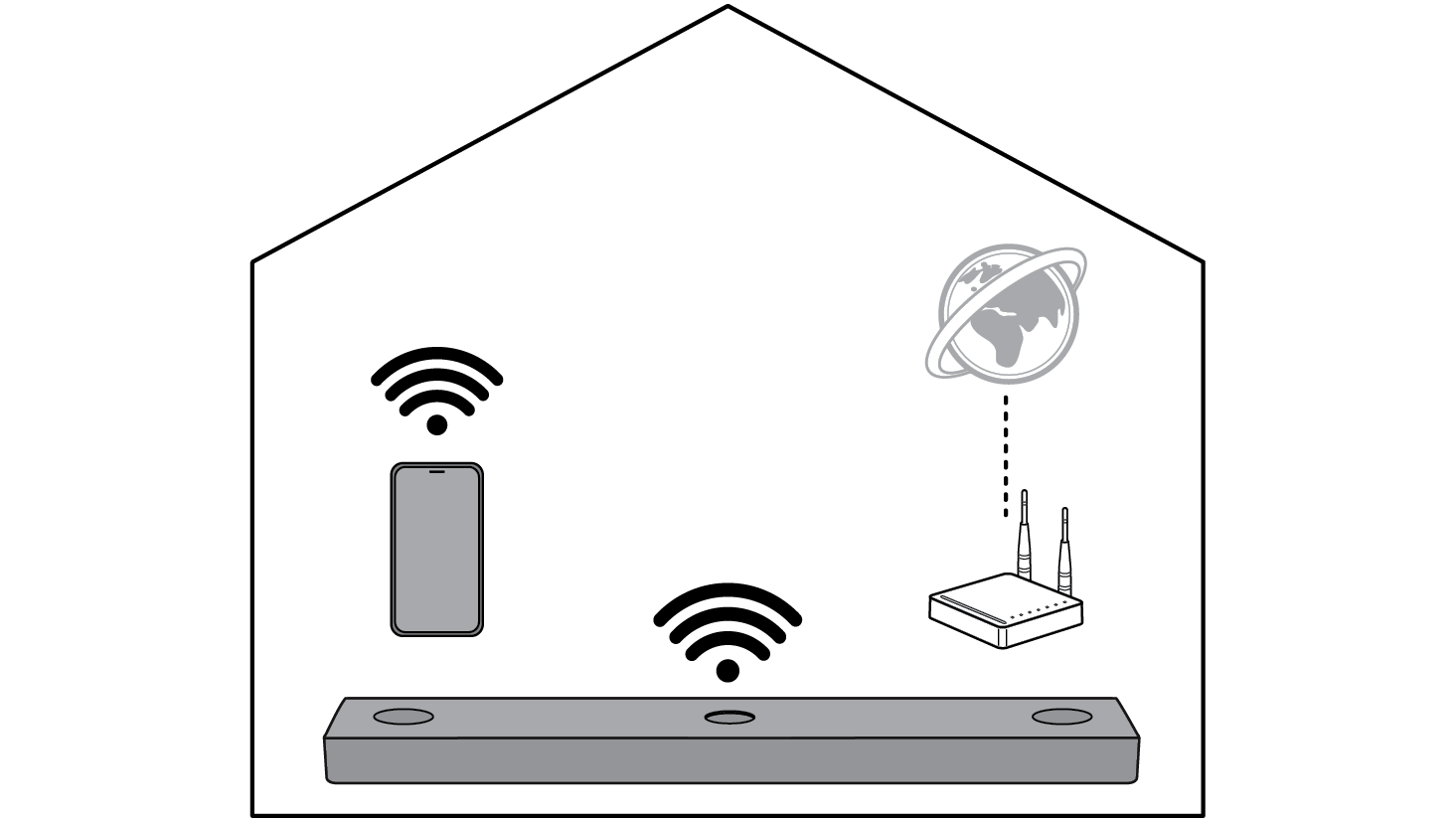

Please check the following first.
- Do you have a wireless router?
- To connect your smartphone and the product via Wi-Fi, you must have a wireless router that is connected to the internet.
- Make sure that they are both connected to the same Wi-Fi network.
- If the wireless router signal is weak, it may not be able to connect. Move the router closer to the soundbar or reposition it away from obstacles.
- Does your smartphone have Bluetooth enabled?
- Enable Bluetooth on your smartphone.
- If Bluetooth is enabled, you can easily connect to Wi-Fi. If Bluetooth is disabled, the product may not be registered on the LG Soundbar app.
- The LG Soundbar app is available in the versions listed below.
- Android™ OS: Version 6.0 or higher
- iOS OS: Version 12 or higher
- Minimum supported versions for each OS may change later.
Installing the app
Install the LG Soundbar app on your smartphone. To install the LG Soundbar app, you can scan the QR code with a QR code scan app or download on Google Play or the App Store.
Downloading with a QR code
- a Scan the QR code below with a QR code scan app.
- b You will be directed to a page where you can download the LG Soundbar app. Tap the app to install it.

(Android Phone OS)

(iPhone OS)

Downloading on Google Play or App Store
Go to the Google Play or the App Store on your smartphone and search for the LG Soundbar app to install it.
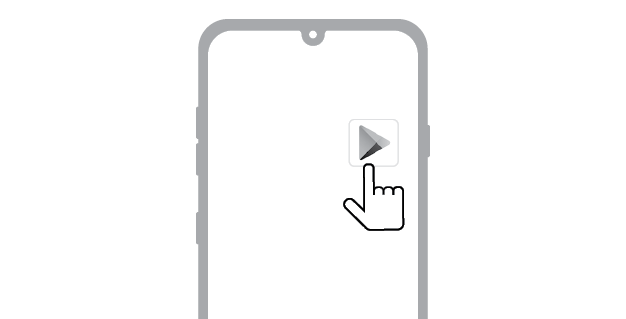
(Android™ Phone)
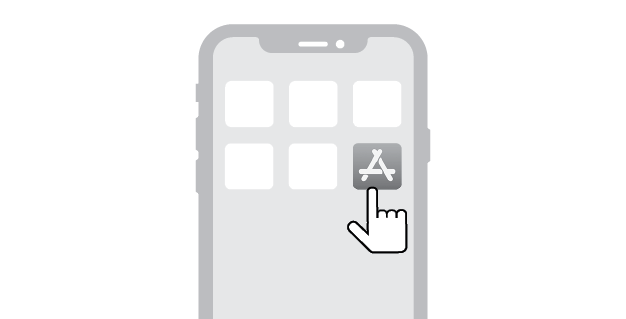
(iPhone)

|
|
|
|
|


Connecting with a Smartphone via LG Soundbar app
You must connect the product to the smartphone via Wi-Fi on the LG Soundbar app to use network services.
The app installation method differs depending on the smartphone.
- a Find and tap the LG Soundbar app installed on your smartphone.
- b Follow the instructions on the LG Soundbar app. You will need to agree to the terms of service, location permission, and Bluetooth permission settings. Turn on Wi-Fi and Bluetooth.
- c Select the product to connect. This product will be indicated as “LG_Speaker_S80TR_XXXX”.
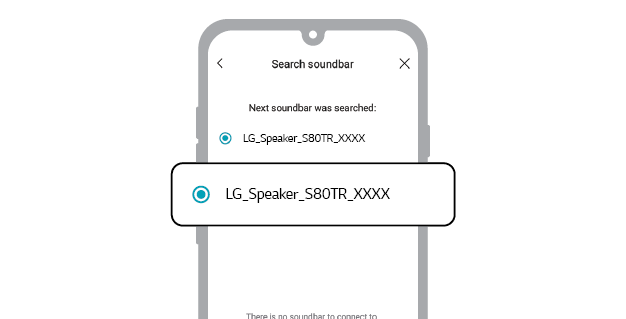

- d Select a Wi-Fi network and enter the password.
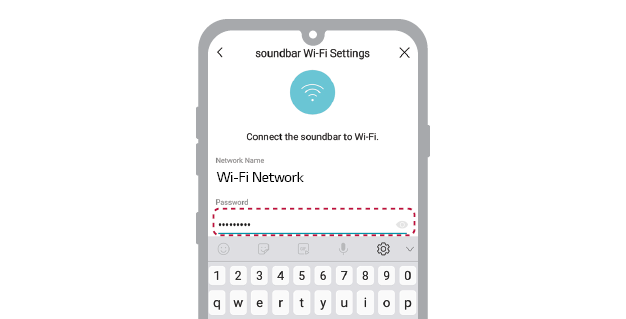

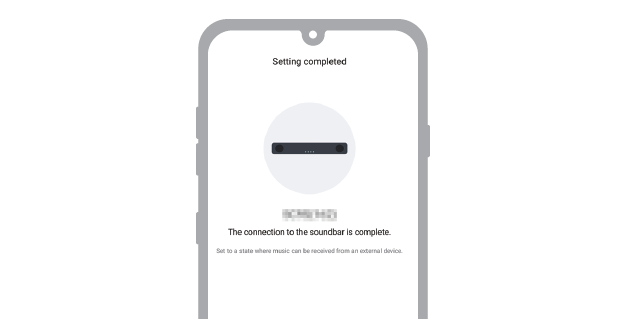
- e After completing product connection on the LG Soundbar app, you will see “CONNECTED” appear on the status display on the product.

|
|
|
|
|

