Connecting with an HDMI Cable
Connect the TV and external device (game console, DVD player, etc.) with an HDMI cable and enjoy a deep and rich sound.
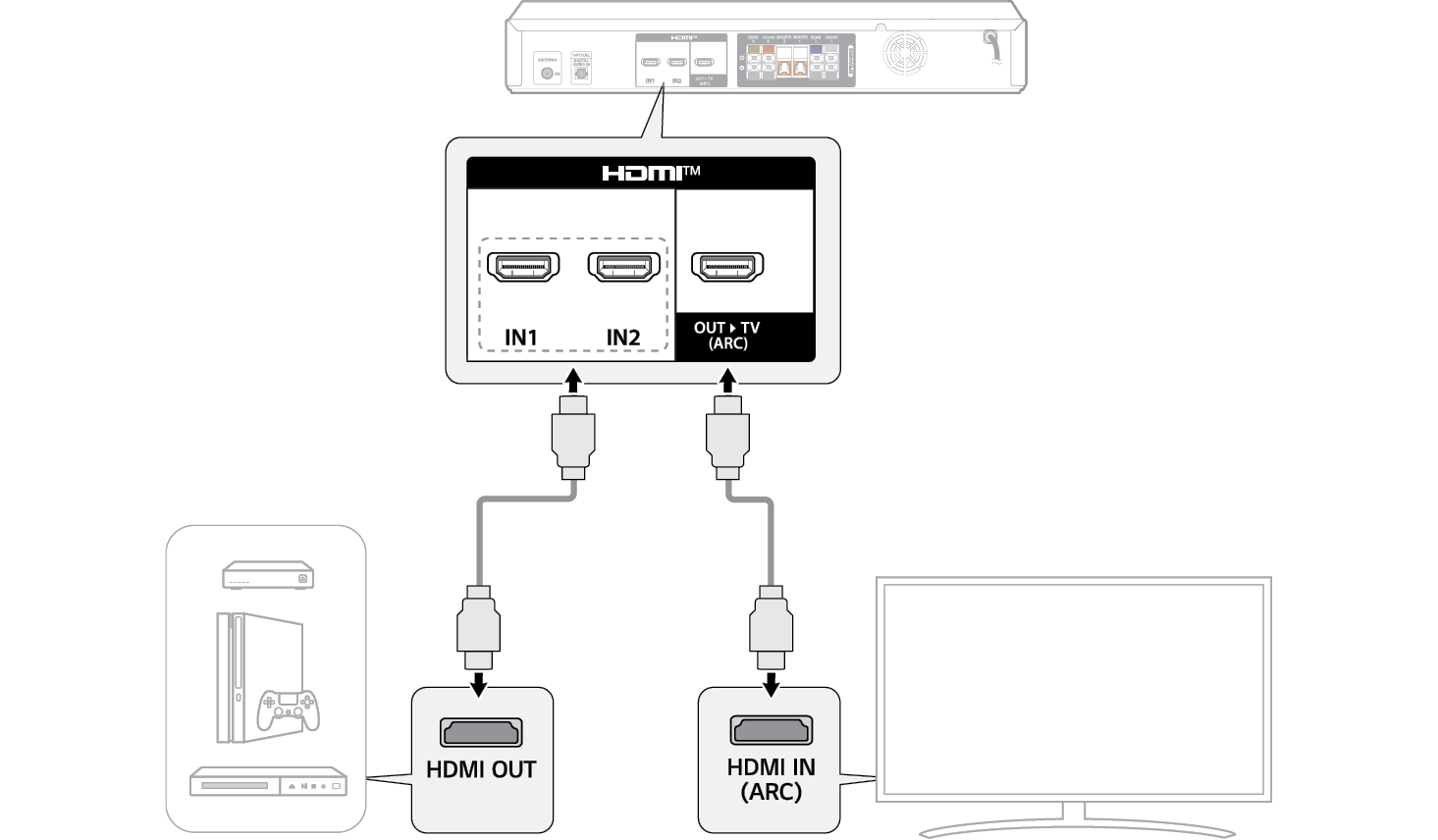
Connecting an external device via HDMI A
- a Connect an external device such as a DVD or Blu-ray player. Following the picture below, connect the HDMI OUT terminal of the device to the HDMI™ IN1 or IN2 terminal on the back of the receiver.
- b Using the HDMI cable, connect the HDMI™ OUT dTV (ARC) terminal on the back of the receiver to the HDMI IN (ARC) terminal on the TV.

- c Press the Function
 button repeatedly until “HDMI1” or “HDMI2” appears on the status display.


- d When the external device is properly connected to the product, you can listen to the sound of the device.
|
|
|
|
|


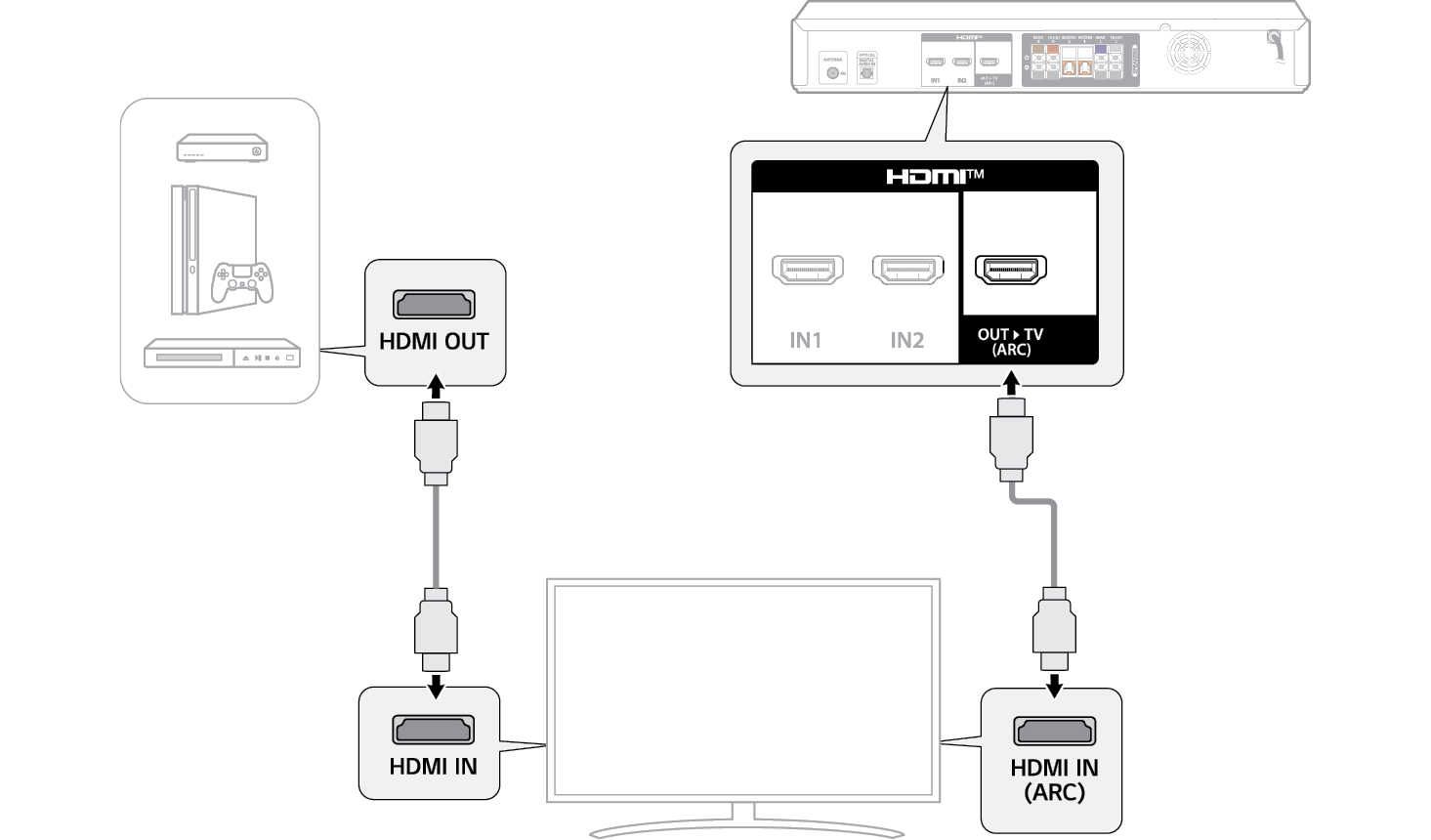
Connecting an external device via HDMI B
- a Connect an external device such as a DVD or Blu-ray player. Following the picture below, connect the HDMI OUT terminal of the device to the HDMI IN terminal of the TV.
- b Using the HDMI cable, connect the HDMI™ OUT dTV (ARC) terminal on the back of the receiver to the HDMI IN (ARC) terminal of the TV.

- c Press the Function
 button repeatedly until “OPT/HDMI ARC” appears on the status display.


- d When the external device is properly connected to the product, you can listen to the sound of the device.
|
|
|
|
|

