Connecting Smartphone to the Speaker via Bluetooth - LG xboom Stage301
You can play music files stored on a Bluetooth device, or run music apps to enjoy the music with this product.
Please check the following first.
- • Bluetooth specifications of the product.
- - Codec: SBC, AAC, LC3
- • How to connect the device to the product may differ depending on the type and model of the Bluetooth device. For information on how to connect the product, refer to the user manual of the Bluetooth device to be connected.
Select the [Bluetooth] menu on the smartphone's Settings screen. The menu access method may differ depending on the smartphone manufacturer and model.
- a Press the Power
 button on the speaker to turn it on. The lighting Indicator blinks.


- b Tap the Setting (
 /
/  ) button on your smartphone and select Bluetooth.
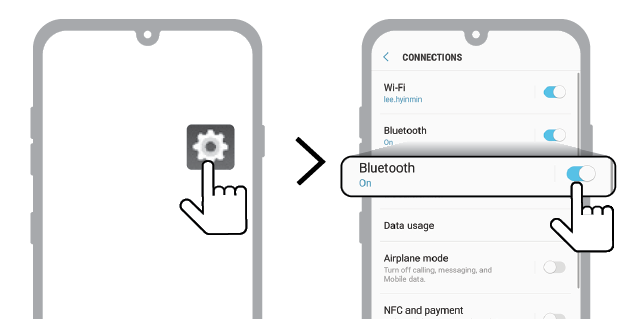
(Android Phone)
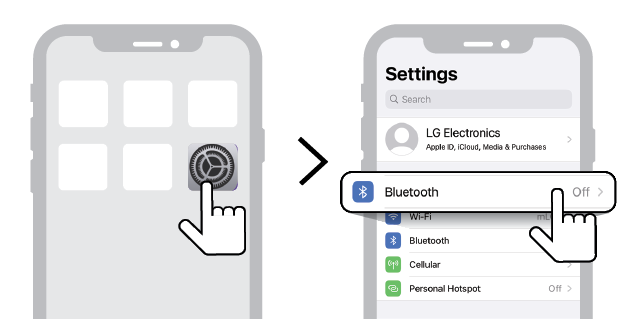
(iPhone)

- c Turn on the Bluetooth function. (
 Off >
Off >  On)
On) - d When the Fast Pair connection pop-up appears on your smartphone screen, touch the pop-up to connect.
- • Only Android™ 11 or higher is supported. Bluetooth and location information settings of the mobile device are required.
- e If the connection pop-up does not show up, select and connect the “xboom Stage301” from the list of connectable devices on the smartphone.
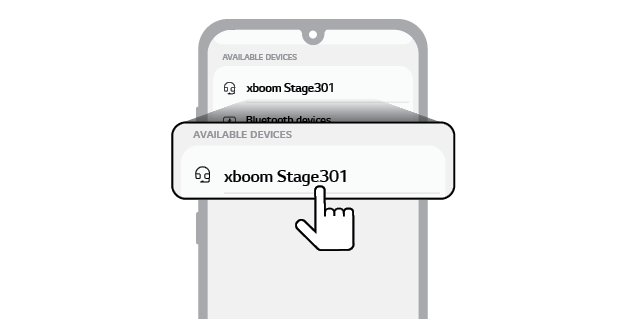

- f Once the speaker and the smartphone are connected via Bluetooth, the lighting Indicator will turn on with the sound.


- g If “xboom Stage301” does not appear on the list, tap on the Refresh
 icon on an Android phone or restart Bluetooth on an iPhone.
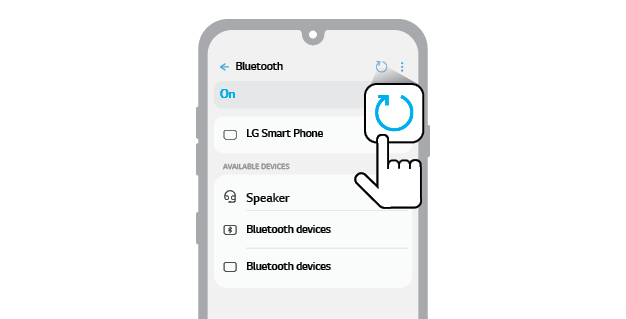
(Android Phone)
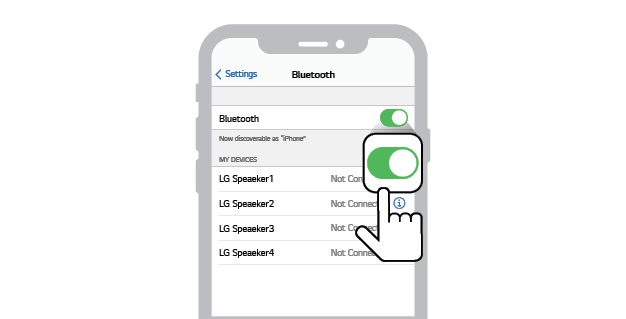
(iPhone)

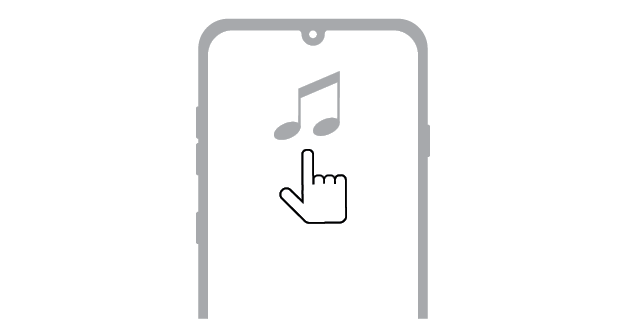
- h Select and play a track on the smartphone.

|
|
|
|
|

