Using Room Calibration Pro
This technology allows you to analyze the sound coming from the product and fine-tune the audio settings. Note that, when you start Room Calibration Pro, the product may make a louder sound than expected.
Please check the following first.
- • If the microphone is turned off, the Room Calibration Pro feature cannot be used. Slide the MIC (Microphone) switch on the rear of the product to the ON position. (
 OFF >
OFF >  ON)
ON) - • The microphone is used solely for audio functionality and does not collect the user's sound.
Using Room Calibration Pro on the Product
- a Press the MY
 button twice.
 - b The lighting indicator on the product displays dynamic, multicolored light animations and Room Calibration Pro automatically begins.
- c After a moment, the lighting indicator on the product displays multicolored lighting, and Room Calibration Pro is completed.


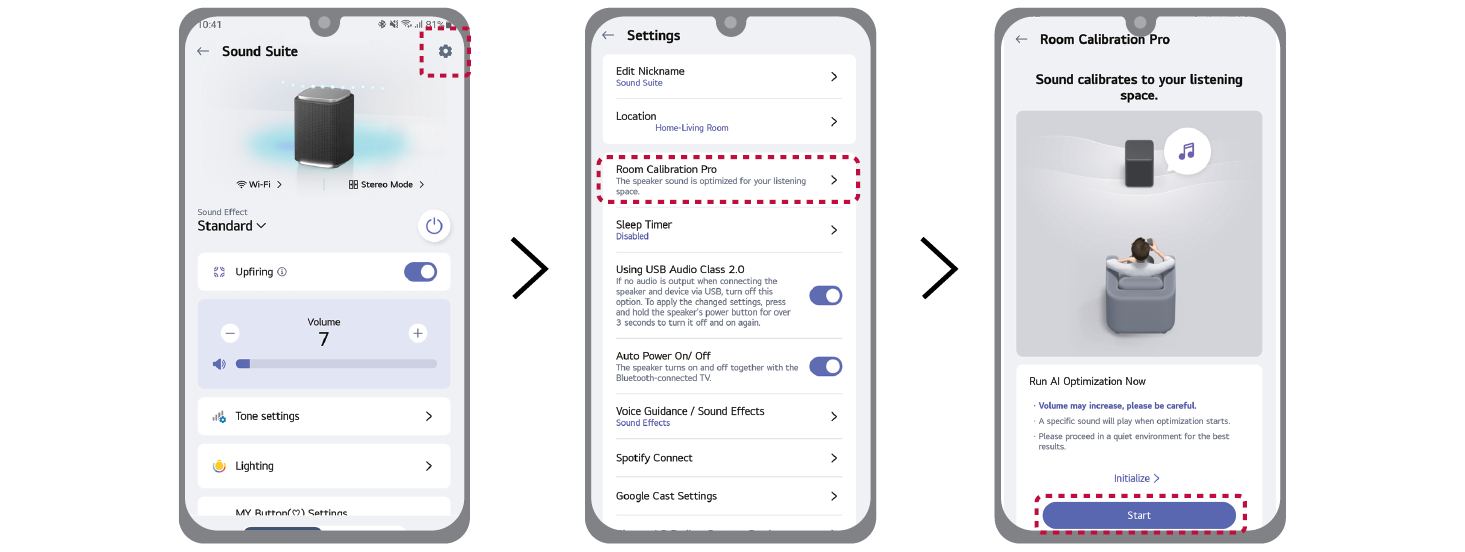
Using Room Calibration Pro in the LG ThinQ app
- a Select the Settings
 button on LG ThinQ app.
 - b Select [Room Calibration Pro] [ [Start] and follow the on-screen instructions in the LG ThinQ app.

|
|
|
|
|
The Room Calibration Pro feature is not available while the Dolby Atmos FLEXCONNECT function is active. |

