Connecting via a USB 2.0 Cable
Please check the following first.
- • This product can be used with gaming PCs, laptops or game console* that support UAC** (USB Audio Class).
- - PCs, laptops: with UAC 2.0
- - Game console (PlayStation 4/5): UAC 1.0 support
* If there is no audio output when the speaker and device (PS4/PS5/PC, etc.) are connected with a USB cable, turn off the UAC 2.0 option in the LG ThinQ app. To apply the configured settings, press and hold the Power  button for more than 3 seconds to turn off the product, then power it on again.
** UAC (USB Audio Class): Digital audio connection standard that used a USB interface and distinction between 1.0 and 2.0 by the transmission speed and data size that support.
- • It may not work properly depending on the specifications of device that support UAC (USB Audio Class) For more information, contact your device manufacturer.
- • The speaker’s PC specifications are as follows:
- - Windows OS: 10 version 20H2
- - MAC OS: 11.2 version
- - It is recommended to use the speaker with this version or later.
- • Connecting a monitor or some smartphone to the speaker via USB C to USB C cable may result in a no sound.
- a Press the Source
 button repeatedly on the product until the lighting indicator lights up amber to select USB-Audio mode. After a moment, the lighting indicator blinks amber.


- b Connect the product to your PC using a USB 2.0 cable.
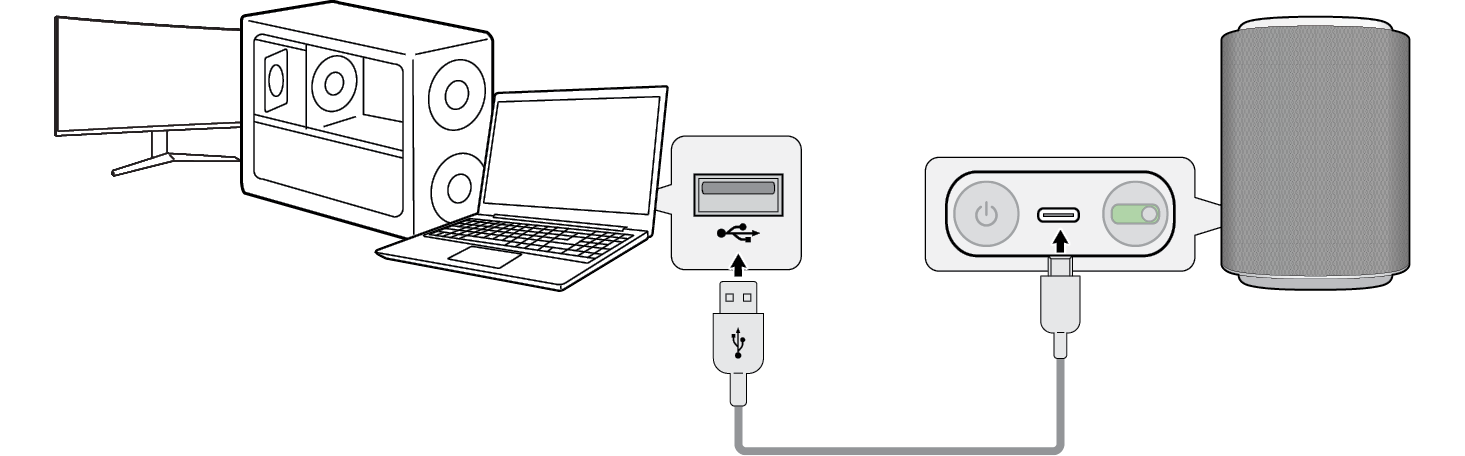

- c When the product is connected to the playback device, the lighting indicator lights up amber briefly and then switches to the ambient lighting color set through the LG ThinQ app.
- d Switch the audio output on your PC to USB Audio.
- e Select a music app on your PC and start playback.
|
|
|
|
|

