Sound Bar Quick Guide
Connecting the Product
You can enjoy a richer sound by connecting the soundbar to the wireless subwoofer.
Connecting the wireless subwoofer automatically
After completing installation, the wireless subwoofer will automatically be connected to the soundbar. Connect the soundbar to the subwoofer in the following order.
- a Plug the power cable into the wireless subwoofer.
- b Plug the power cable connected to the wireless subwoofer into an outlet.
- c Plug the power cable into the AC adapter.
- d Connect the AC adapter cable to the DC IN (AC adapter input) terminal on the back of the product.
- e Plug the power cable connected to the AC adapter into an outlet.
-
f Press the Power
 button on the soundbar to turn it on.

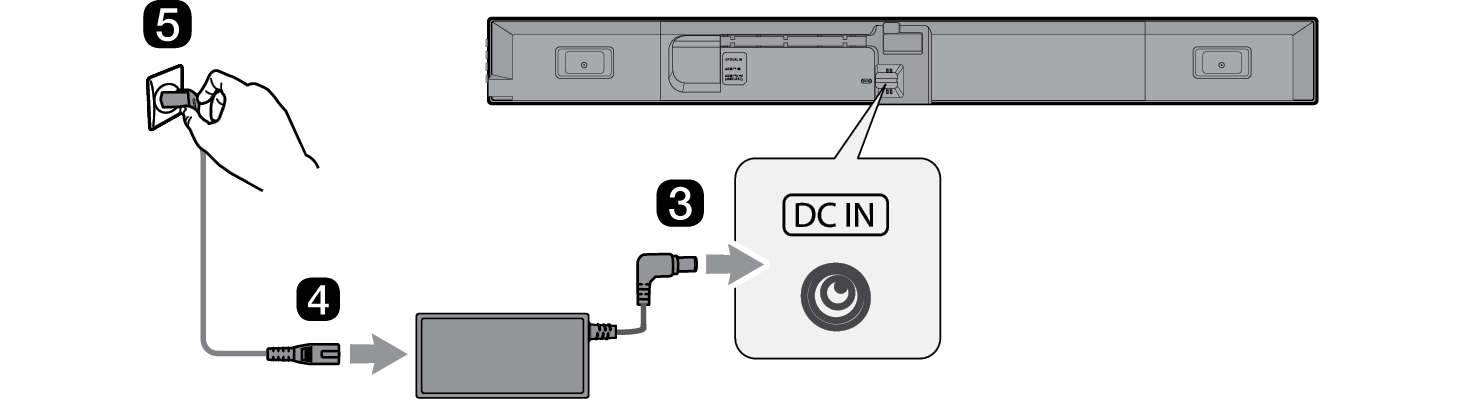

- g When the connection is automatically established, you will see the LED on the back of the wireless subwoofer light up green.
|
|
|
|
|


Checking the connection with the LED on the wireless subwoofer
You can check the connection status by looking at the LED on the wireless subwoofer.
|
LED Colour |
Status |
|
Blinking green |
Connecting in progress |
|
Green |
Connected successfully |
|
Red |
Bad connection, or the subwoofer is in standby |
|
Off |
Power cable not connected |
Connecting the wireless subwoofer manually
If you see a red LED on the wireless subwoofer, it means that the soundbar is not connected to the subwoofer. If this is the case, connect them in the following order.
-
a Press the Power
 button on the soundbar to turn it off.
 - b Press the PAIRING button on the wireless subwoofer. Check if the LED on the subwoofer is blinking green. If you still see a red LED on the wireless subwoofer, press and hold the button on the back of the subwoofer again.


-
c Press the Power
 button on the soundbar to turn it on.
 - d When the connection is established, you will see the LED light on the wireless subwoofer light up in green.
|
|
|
|
|



Connecting the rear speakers (SPT8-S, sold separately)
Automatic connection
After completing installation, the rear speakers will automatically be connected to the soundbar. Connect the soundbar to the rear speakers in the following order.
- a Connect the speaker cables to the corresponding terminals on the rear speakers (left, right). Connect the black striped cable to the negative terminal and the other cable to the positive terminal.
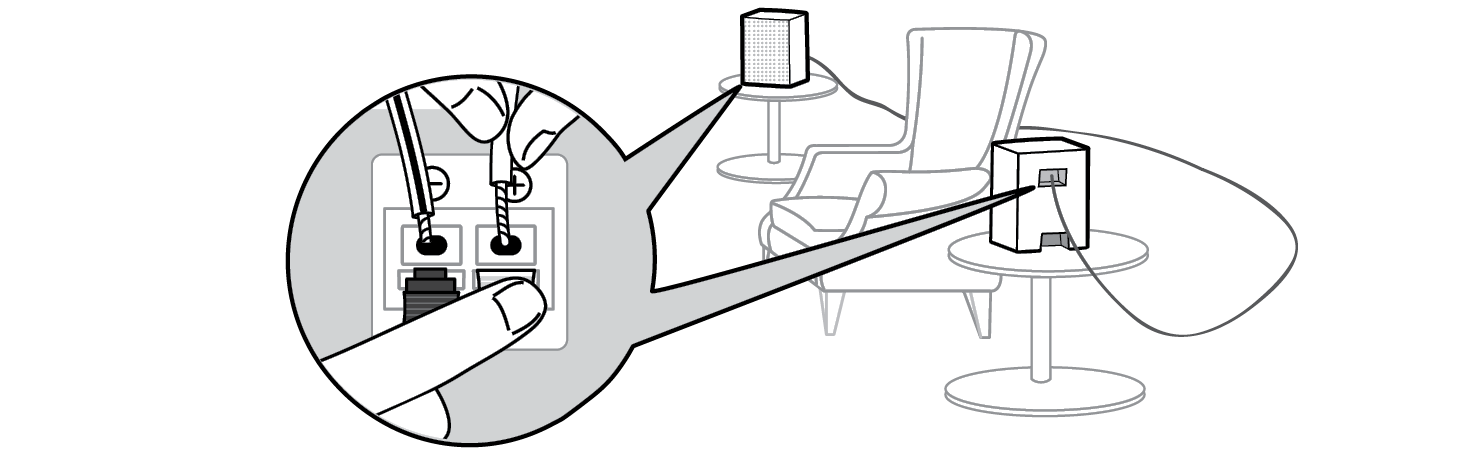

- b Plug the power cable into the rear speaker.
- c Plug the power cable connected to the rear speaker into an outlet.
-
d Press the Power
 button on the soundbar to turn it on.
 - e When the connection is automatically established, you will see the LED on the rear speaker light up green.
|
|
|
|
|



Checking connection status with the LED colour
You can check the connection status with the LED on the rear speaker.
|
LED Colour |
Status |
|
Blinking green |
Connecting In progress |
|
Green |
Connected successfully |
|
Red |
Bad connection, or the rear speakers are in standby |
|
Off |
Power cable not connected |
If you see a red LED on the rear speaker, it means that the soundbar is not connected to the rear speakers. If this is the case, connect them in the following order.
-
a Press the Power
 button on the soundbar to turn it off.
 - b Press the PAIRING button on the back of the rear speaker. Check if the LED on the rear speaker is blinking green.


-
c Press the Power
 button on the soundbar to turn it on.
 - d When the connection is established, you will see the LED light on the rear speaker light up green.
|
|
|
|
|


