Product

Front & Top - LG xboom Stage501 Portable Bluetooth Speaker
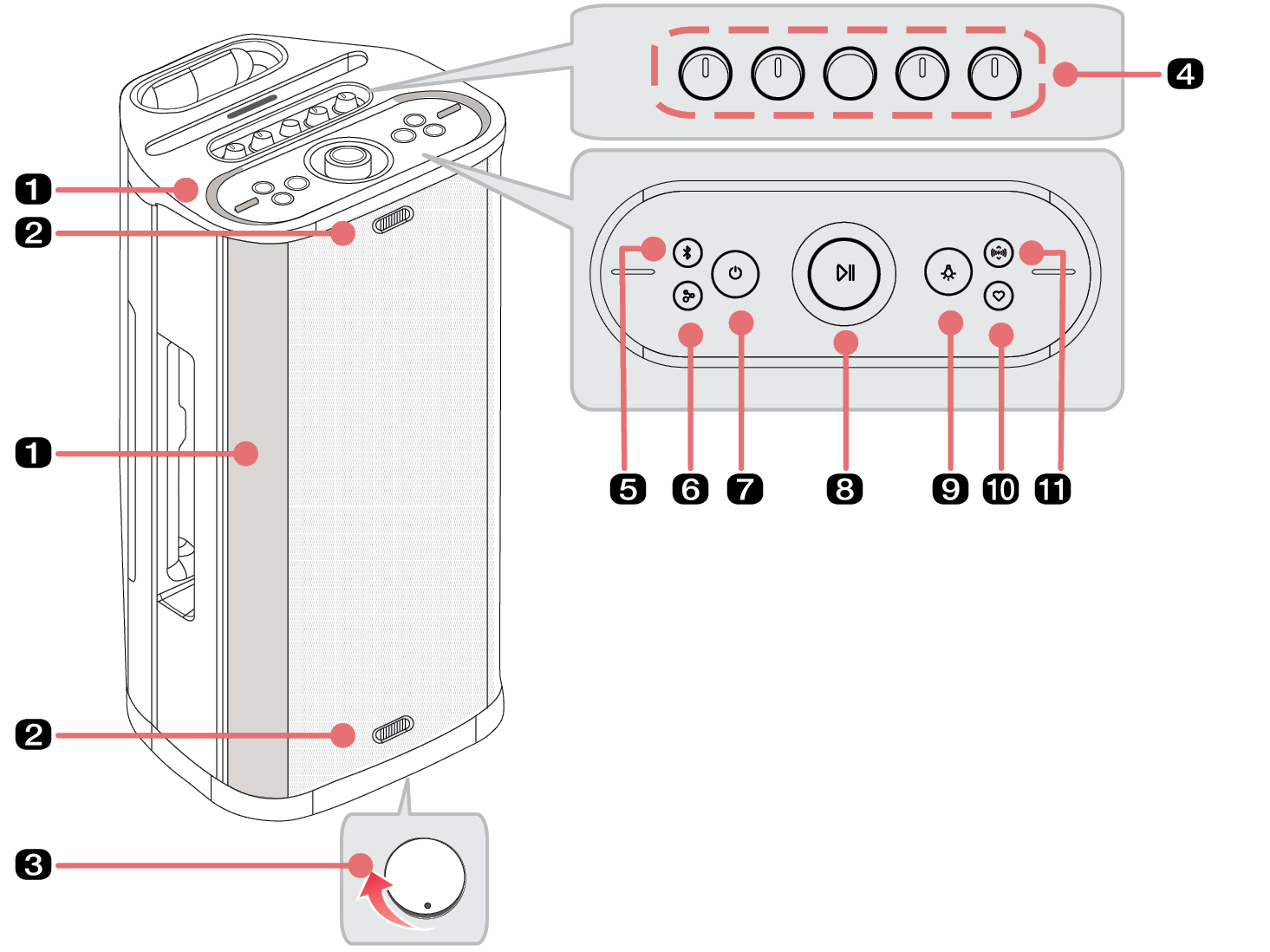
2026 LG XBOOM STAGE501 Portable Bluetooth Product Front and Top

a

Lighting Indicator

b

Flash Lighting

Enjoy the light to the beat of the music.

c

Tripod hole cup

d

- MIC 1 + volume knob

Turns the knob to the right (+) or left (-) to adjust the Microphone volume.

- REVERB 1 + knob

Turns the knob to the right (+) or left (-) to adjust the REVERB.

l KARAOKE L knob

Turns the knob to the right (L) or left (l) to control the Key Changer level.

Press the button to control the Voice Canceller level.

- MIC 2 / GUITAR + volume knob

Turns the knob to the right (+) or left (-) to adjust the Microphone and Guitar sound volume.

- REVERB 2 + knob

Turns the knob to the right (+) or left (-) to adjust the REVERB.

e

Bluetooth 41128.png

  • You can change the Bluetooth settings.
  • - Connecting an additional smartphone: Press the button. ([ See “Connecting Two Bluetooth Devices to the Speaker on page 24.)
  • - Changing from AUX/USB to Bluetooth: Press the button.
  • - Resetting Bluetooth: Press and hold the button for 7 seconds. ([ See “Resetting the product on page 43.)
  • You can use the USB Audio mode. After connecting the USB cable to the PC, press the button three times quickly. ([ See “Connecting via USB Audio on page 33.)

f

Party Link 41175.png

  • Stereo mode: Press the button twice quickly. ([ See “Stereo mode on page 26.)
  • - Only the same models can be connected.
  • Multi mode: Press the button. ([ See “Multi mode on page 27.)
  • - Party Link is only available among Auracast™-supported models from LG.

g

Power 41189.png

Turns the speaker on or off.

h

Play/Pause 41199.png / Volume knob

  • Play/Pause: Press the button.
  • Moving to the next music: Press the button twice quickly.
  • Moving to the previous music: Press the button three times quickly.
  • Using the Hands-Free function: Press the button when you receive a call from a device connected via Bluetooth. ([ See “Talking on the Phone Hands-free on page 25.)

Turns clockwise or counterclockwise to adjust the volume level.

i

Mood Lighting 41225.png

Press the button repeatedly to select the desired Mood Lighting.

  • You can customise the Mood Lighting mode as you want by connecting to the LG ThinQ app.
  • If you press the Mood Lighting 41220.png button on the product repeatedly, turn the Mood Lighting off.

j

MY 41320.png

  • Press the button to use the MY functions. ([ See “Using MY function on page 31). Before using MY functions, set up in the LG ThinQ app.
  • Press the button twice to use Space Calibration. It selects the optimal sound settings to suit your content.
  • If the MY button setting in the LG ThinQ app is set to FYI.AI, it works as follows:
  • - Press the button to launch the FYI.AI app.
  • - Press and hold the button to input voice. Voice input is completed when the button is released.

k

Sound Mode 52030.png

Changes sound effect.([ See “Setting Sound Effects on page 41.)

7729.png

> CAUTION

  • Please note that when using the Space Calibration feature, the sound may suddenly become louder during the stage of optimizing sound quality.
  • Place the product at a safe distance from the child’s reach. Otherwise it may result in the product falling down and causing personal injury and/or property damage.
  • Be careful that the speaker does not fall down. Otherwise it may result in the speaker malfunctioning and causing personal injury and/ or property damage.
  • It is not good for the eyes to see the lens while the LED is running, do not look at it directly.
