Sound Bar Quick Guide
Installing and using the Product
- a Connect the soundbar to your TV via an optical cable or an HDMI cable.
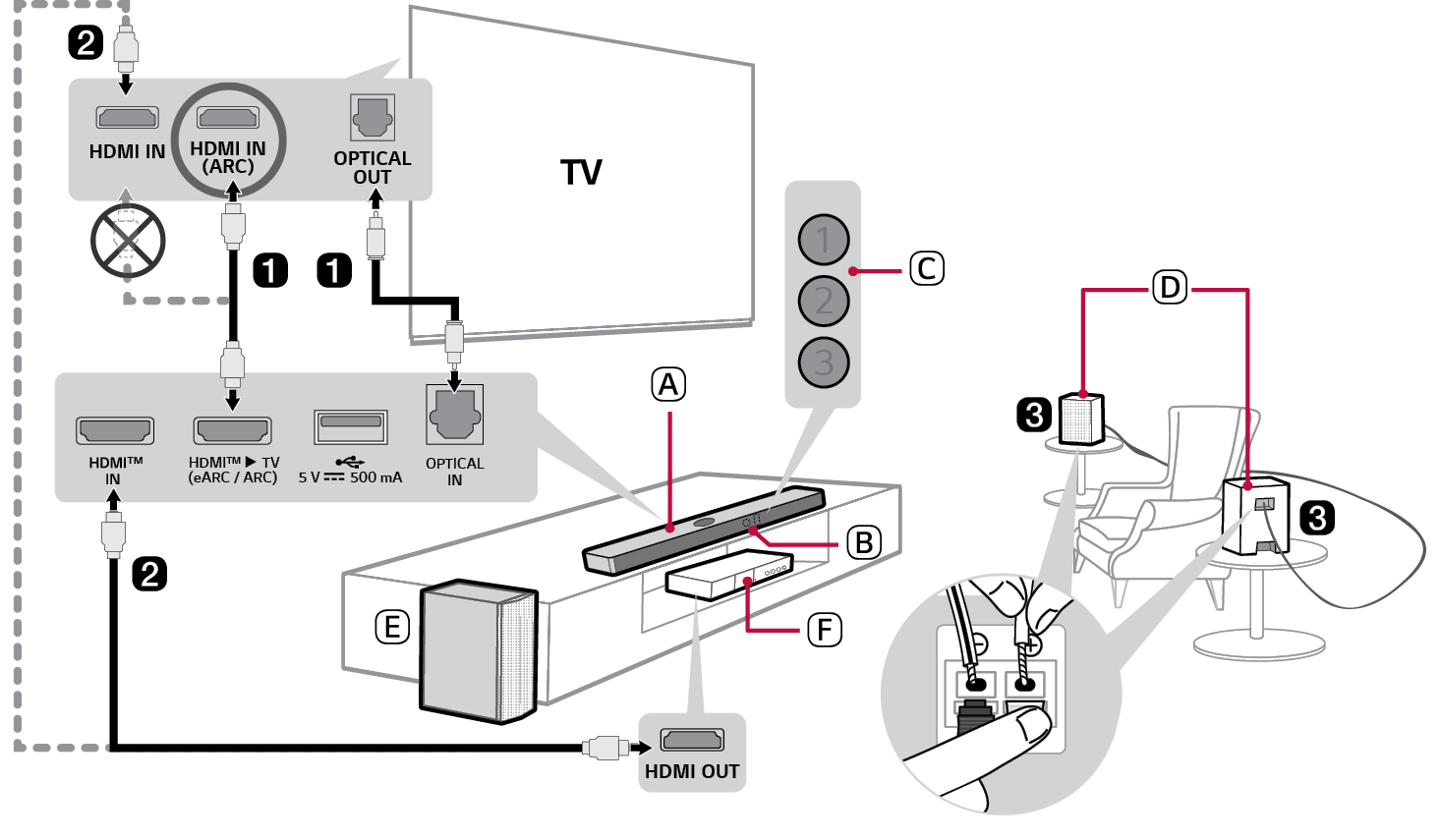

- A Soundbar
- B Remote Control Receiver
- C Status LED (ABC)
- D Rear Speakers
- E Wireless Subwoofer - Install it close to the soundbar.
- F External Device - (Blu-ray player, game console, etc.)
- b If you are using an external device (ex. Set-top box, Blu-ray player, game console, etc.), connect it to the soundbar or to the TV via an HDMI cable.
- c Connect the rear speakers via a speaker cable. When connecting the rear speakers, connect the black striped cable to the negative terminal of each speaker and the remaining cable to the positive terminal of each speaker.
- d Connect to power in the following order: wireless subwoofer [ rear speakers [ soundbar. Then, turn on the soundbar. When the connection is automatically established with the soundbar, the LEDs on the wireless subwoofer and the rear speaker will light up green. ([ See “Connecting the Product” on page 6.)
- e Using the product with your TV ([ See “Connecting with an Optical Cable”, “Connecting with LG Sound Sync (Wireless)”, “Connecting with an HDMI Cable”, “Connecting an external device via HDMI A” on page 31, 33, 34, 36.)
-
A Press the Function
 button repeatedly until LED1 lights up white. If you are using an external device that is connected to HDMI™ IN on the soundbar, press the Function
 button repeatedly until LED1 lights up golden yellow.
 - B On your TV's settings, set the output speaker to [HDMI ARC], [Optical], or [External Speaker].
- f Connecting the product to your smartphone via Bluetooth ([ See “Connecting via Bluetooth” on page 40.)
-
A Tap the Settings
 button on your smartphone and select Bluetooth. Turn on the Bluetooth function. (
 Off >
Off >  On)
On) -
B Press the Bluetooth pair
 button. After a moment, LED1 and LED2 blink white.
 - C Find and tap the product on your smartphone. The product appears as “LG US70TR(XX)”.
- D When the product is connected to your smartphone via Bluetooth, LED1 and LED2 light up white.
- g Connecting to the LG ThinQ app ([ See “Connecting with the product via LG ThinQ app” on page 43.)
- A Find and install the LG ThinQ app on Google Play or App Store from your smartphone.
- B You can get more information regarding its use by selecting [Help] in [Setting].
Manually connecting the soundbar to the wireless subwoofer or rear speakers ([ See “Connecting the wireless subwoofer manually”, “Manual connection” on page 8, 11.)
If you see a red LED on the wireless subwoofer or rear speaker, it means that the soundbar is not connected to the speakers. If this is the case, connect them in the following order.
-
A Press the Power
 button on the soundbar to turn it off.
 - B Press the PAIRING button on the back of the wireless subwoofer or rear speaker. Check if each LED blinks green.
- If you still see a red LED on the wireless subwoofer, press and hold the button on the back of the subwoofer again.
-
C Press the Power
 button on the soundbar to turn it on.
 - D When the connection is established, you will see a green LED light on the wireless subwoofer or rear speaker light up.
Table of Contents
Soundbar Quick Guide
2 Installing and using the Product
Installation
6 Connecting the Product
13 Setting up surround sound
Exploring the Product
18 Front
23 Back
24 Exploring Remote Control
Various settings for convenience
27 Convenient functions
28 How to change the settings
29 Sound tuning
30 Voice feedback function
Connecting to the TV
31 Connecting with an Optical Cable
33 Connecting with LG Sound Sync (Wireless)
34 Connecting with an HDMI Cable
Connecting to an External Device
36 Connecting with an HDMI Cable
39 Connecting with an Optical Cable
Using the Product as an Audio System
40 Connecting via Bluetooth
43 Connecting with the product via LG ThinQ app
43 Installing the LG ThinQ app and registering the product
45 Connecting to a USB Storage Device
Mounting the Product to a Wall
47 Checking before mounting to a wall
49 Mounting the Product to a Wall
Safety Precautions
51 Safety and Regulatory
54 Prevention of product misuse
Before Reporting Product Malfunction
58 Troubleshooting
Appendix
61 Specifications
63 Registered Trademarks and Licenses
65 Handling the Product
Installation