Sound Bar Quick Guide
Connecting and Using the Speaker
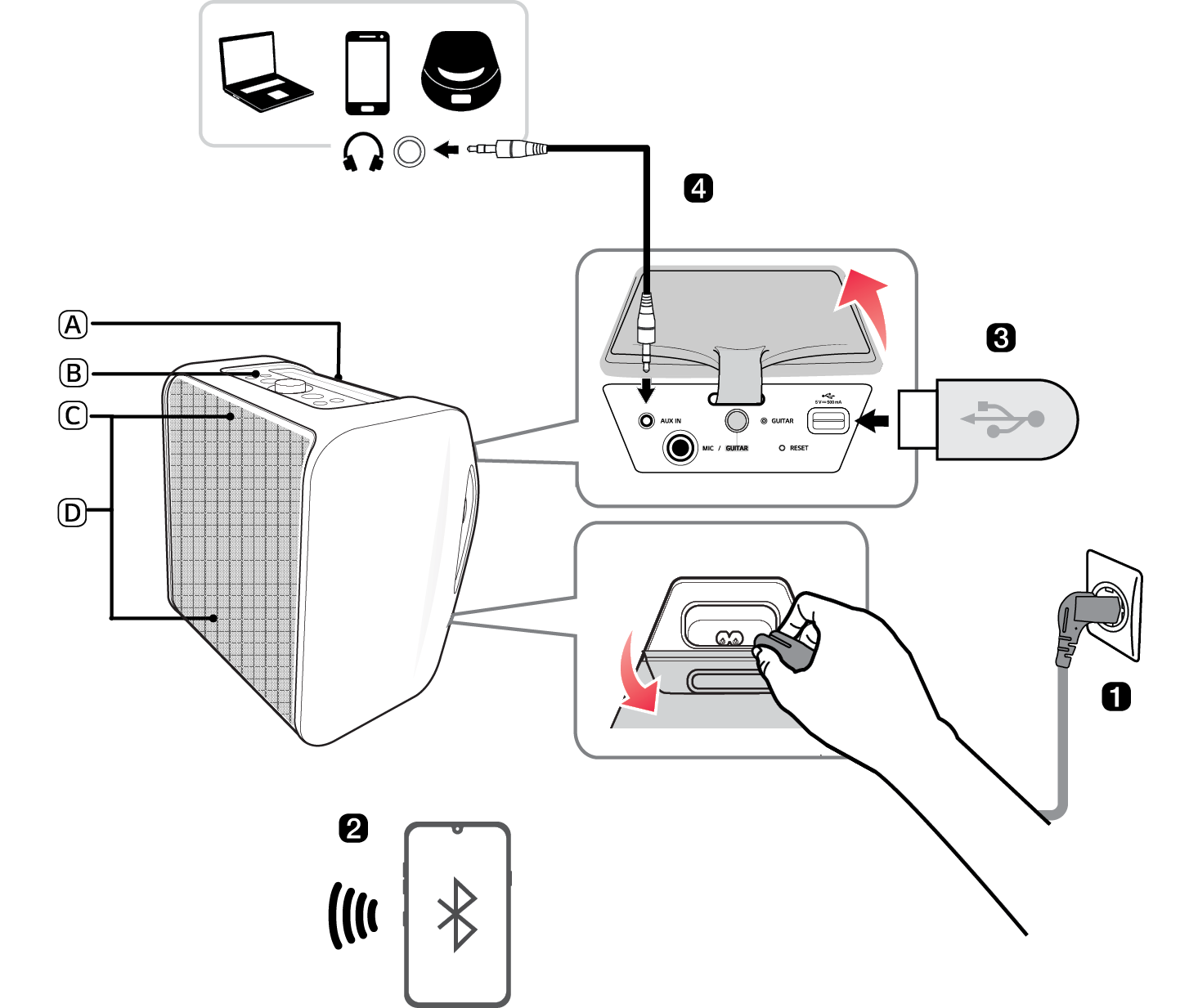

- A Handle
- B Controls
- C Lighting Indicator
- D Mood Lighting
- a Connect the power cord by opening the power supply cover on the back of the product. Charge it before use.
- b Connecting the speaker to a smartphone via Bluetooth ([ See “Connecting Smartphone to the Speaker via Bluetooth” on page 14.)
-
A Press the Power
 button on the speaker to turn it on. The lighting indicator blinks.
 -
B Tap the Settings
 button on your smartphone and select Bluetooth. Turn on the Bluetooth function. (
 Off >
Off >  On)
On) - C Find “xboom Stage301” on the device list on the smartphone and connect to it. Once the smartphone is connected via Bluetooth, the lighting Indicator will turns on.
- D On the smartphone, play a music of your choice.
- c Playing Music from the USB ([ See “Connecting the product to a USB storage device” on page 25.)
-
A Press the Power
 button to turn on the product.
 - B Open the jack cover on the back of the product and plug the USB storage device into the USB terminal.
- d Connecting to an External Device ([ See “Connecting to an External Device” on page 27.)
-
A Press the Power
 button to turn on the product.
 - B Open the jack cover on the back of the product and connect the external device to the AUX IN terminal via a 3.5 mm stereo cable.
- C Turn the external device on and start playing.
- e Connecting the LG ThinQ App ([ See “Installing app” on page 22.)
- A Find and install the LG ThinQ app on Google Play or App Store from your smartphone.
- B Run the LG ThinQ app and use more functions. (EQ, Party Link, Lighting, Setting etc.)
Table of Contents
Portable Bluetooth Speaker Quick Guide
2 Connecting and Using the Speaker
Exploring the Product
5 Front & Top
7 Back & Bottom
Charge
9 Charging the Battery
10 Replacing the Battery
11 Checking Battery Status
Connecting to Bluetooth
14 Connecting Smartphone to the Speaker via Bluetooth
17 Connecting Two Bluetooth Devices to the Speaker
19 Using the Party Link
Connecting to the LG ThinQ App
22 Installing app
23 Using MY function
24 Listening Auracast™ broadcast
Connecting to USB
25 Connecting the product to a USB storage device
Connecting to an External Device
27 Connecting via 3.5 mm Stereo Cable
Additional Functions
28 Setting Sound Effects
29 Resetting the product
29 Initializing the Software
30 Power Saving Mode
30 Using Power On via Bluetooth
31 Voice feedback function
31 Use of Tripod
Safety Precautions
34 Safety and Regulatory
37 Prevention of product misuse
Things to Check before Reporting Malfunction
41 Troubleshooting
Appendix
43 Product Specifications
44 Registered Trademarks and Licenses
45 Handling the Product
Exploring the Product