Front
|
a |
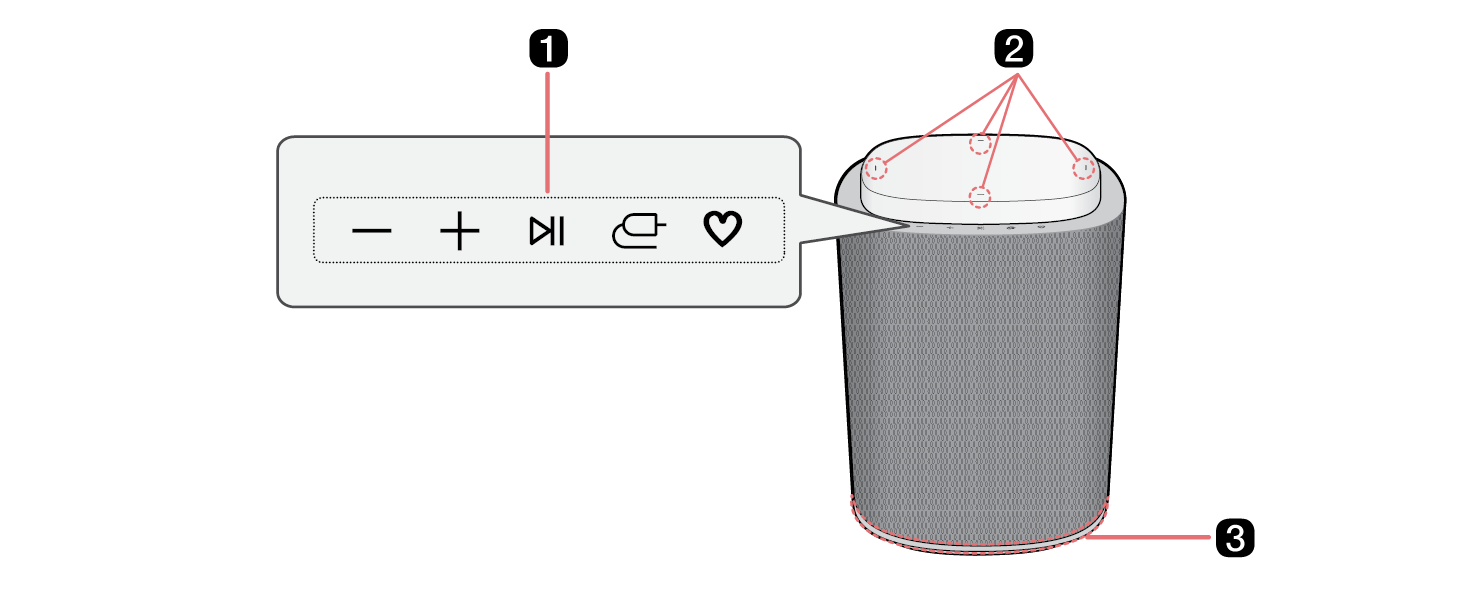
Volume Adjusts the sound volume. Play/Pause
Source Press the button repeatedly to select the desired function or input mode.
MY
|
|
b |
Built-in microphone This is used when operating the Room Calibration Pro. |
|
c |
Lighting indicator You can check the speaker’s operation and connection status. ([ See “Lighting Indicator”) |


|
|
|
|
|


|
|
|
> CAUTION |
|
Note that when using the Room Calibration Pro feature, the sound may suddenly become louder during the stage of optimizing sound quality. |

|
Power on / Power off |
|
|
|
|
|
|
|
|
|
|




|
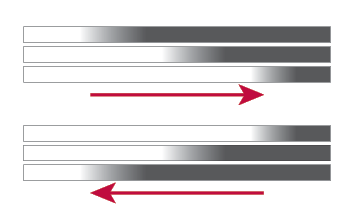
Volume control |
|
|
|
|
|
Source |
|
|
|
Wi-Fi ready The lighting indicator blinks green. |
|
|
Wi-Fi connected The lighting indicator lights up green. Apple AirPlay, Google Cast, Spotify, Tidal connect When playing music via Apple AirPlay, Google Cast, Spotify, or Tidal Connect, the lighting indicator lights up green. |
|
|
Stereo mode ready The lighting indicator blinks white. |
|
|
Stereo mode connected (Left) The left side of the lighting indicator lights up white. |
|
|
Stereo mode connected (Right) The right side of the lighting indicator lights up white. |
|
|
Dolby Atmos FLEXCONNECT ready
|
|
|
Dolby Atmos FLEXCONNECT connected The lighting indicator lights up white. |
|
|
Bluetooth ready The lighting indicator blinks blue. |
|
|
Bluetooth connected The lighting indicator lights up blue. |
|
|
USB audio ready / USB storage device ready The lighting indicator blinks amber. |
|
|
USB audio connected / USB storage device connected The lighting indicator lights up amber. |
|
|
Room Calibration Pro in progress The lighting indicator displays dynamic, multicolored light animations. |
|
|
Room Calibration Pro completed The lighting indicator lights up with multicolored lighting. |














|
|
|
|
|
Once the connection is complete, the lighting indicator will light up with the ambient lighting color set through the LG ThinQ app. |

