Installing and using the Product
- a Connect the product to your TV via an HDMI cable. ([ See “Connecting TV with an HDMI Cable”)
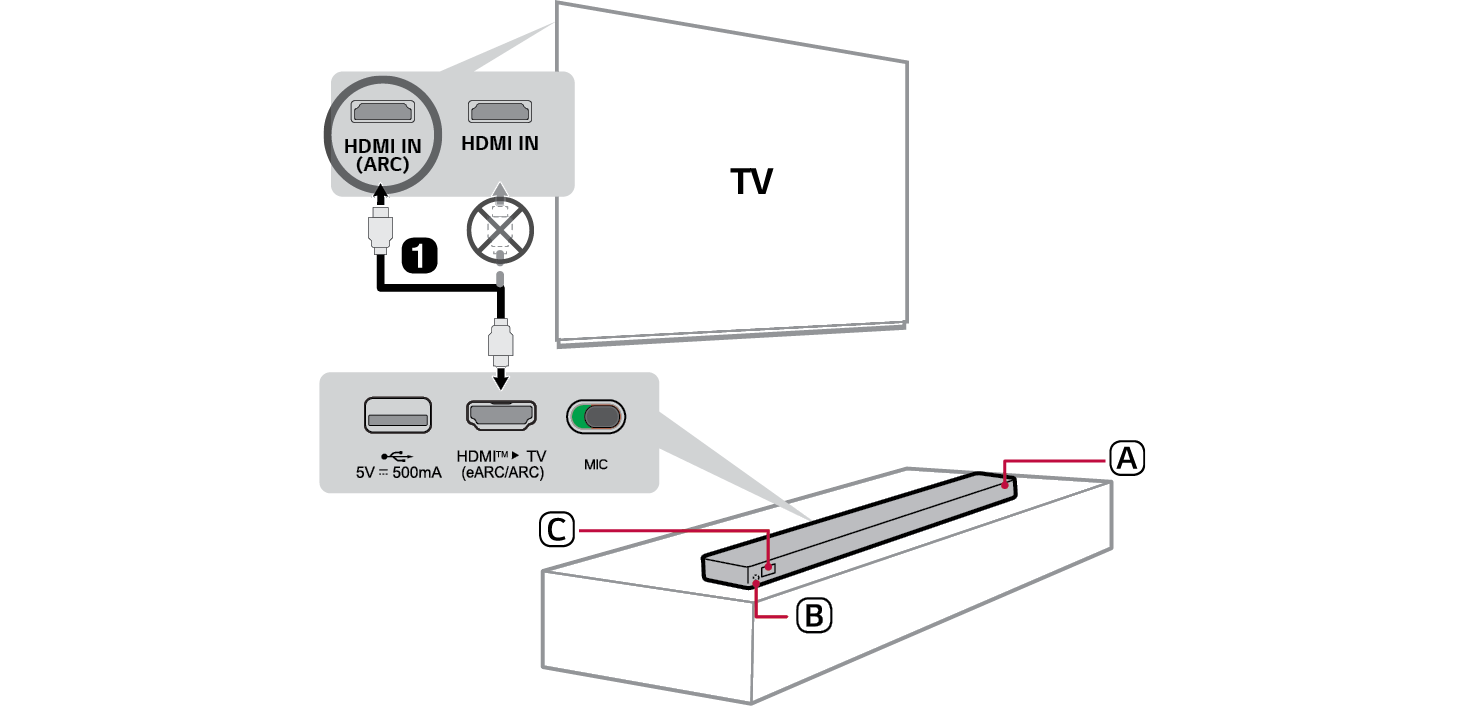

- A Soundbar
- B Remote Control Receiver
- C Display window

- A Using the HDMI cable, connect the HDMI™ d TV (eARC / ARC) terminal on the back of the product to the HDMI IN (ARC) terminal on the TV as shown in the picture.
- B Press the Source
 button repeatedly until [HDMI ARC] appears on the display window.
 - C Enter the [Speaker] settings in the TV’s menu and set the output to [HDMI ARC]. Settings and menu items may vary depending on the TV manufacturer.
- b Connect the product to your TV via Bluetooth ([ See “Connecting TV via Bluetooth”)
- A Press the Bluetooth pair
 button. After a moment, [
 ] blinks on the display window.
 - B Press the Settings button on the TV remote control and enter the [Speaker] menu to set the output speaker to [Bluetooth].
- C Find and select “LG Sound Suite series model name”.
- D When the product is connected to the TV via Bluetooth, the connected device name appears on the display window.
- c Connecting the product to your smartphone via Bluetooth ([ See “Connecting via Bluetooth”)
- A Tap the Settings
 button on your smartphone and select Bluetooth. Turn on the Bluetooth function. (
 Off >
Off >  On)
On) - B Press the Bluetooth pair
 button. After a moment, [
 ] blinks on the display window.
 - C Find and select “LG Sound Suite series model name”.
- D When the product is connected to your smartphone via Bluetooth, the connected device name appears on the display window.
- d Connecting to a USB Storage Device ([ See “Connecting to a USB Storage Device”)
- A Plug the USB storage device into the USB port on the back of the product.
- B Press the Source
 button repeatedly until [
 ] appears on the display window.
 - C Press the Play/Pause
 button on the remote control to enjoy the music.
 - e Connecting the product to your smartphone via Wi-Fi ([ See “Connecting with the product via LG ThinQ app”)
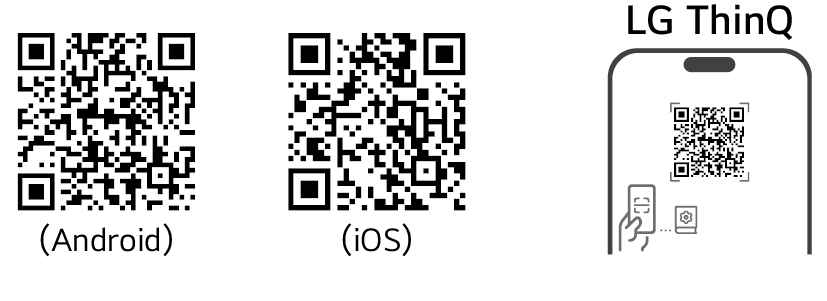

- A Connect your smartphone to Wi-Fi.
- B Install the LG ThinQ app on Google Play or the App Store.
- C Run the LG ThinQ app and follow the instructions.
- D The product will connect to your smartphone and you can control the product with LG ThinQ app.
Using Dolby Atmos FLEXCONNECT
The product connects with LG Sound Suite products to provide optimal acoustics in any room or location. Connectivity is possible through the LG ThinQ app’s Dolby Atmos FLEXCONNECT settings without the need for complicated wires. Connect your LG Sound Suite products for optimal acoustics.
Scan the QR code below for more information of using Dolby Atmos FLEXCONNECT with LG Sound Suite products.

|
|
|
|
|


Exploring the Product