Installing and using the Product
- a Connecting the receiver with speakers ([ See “Connecting the speakers” on page 7.)
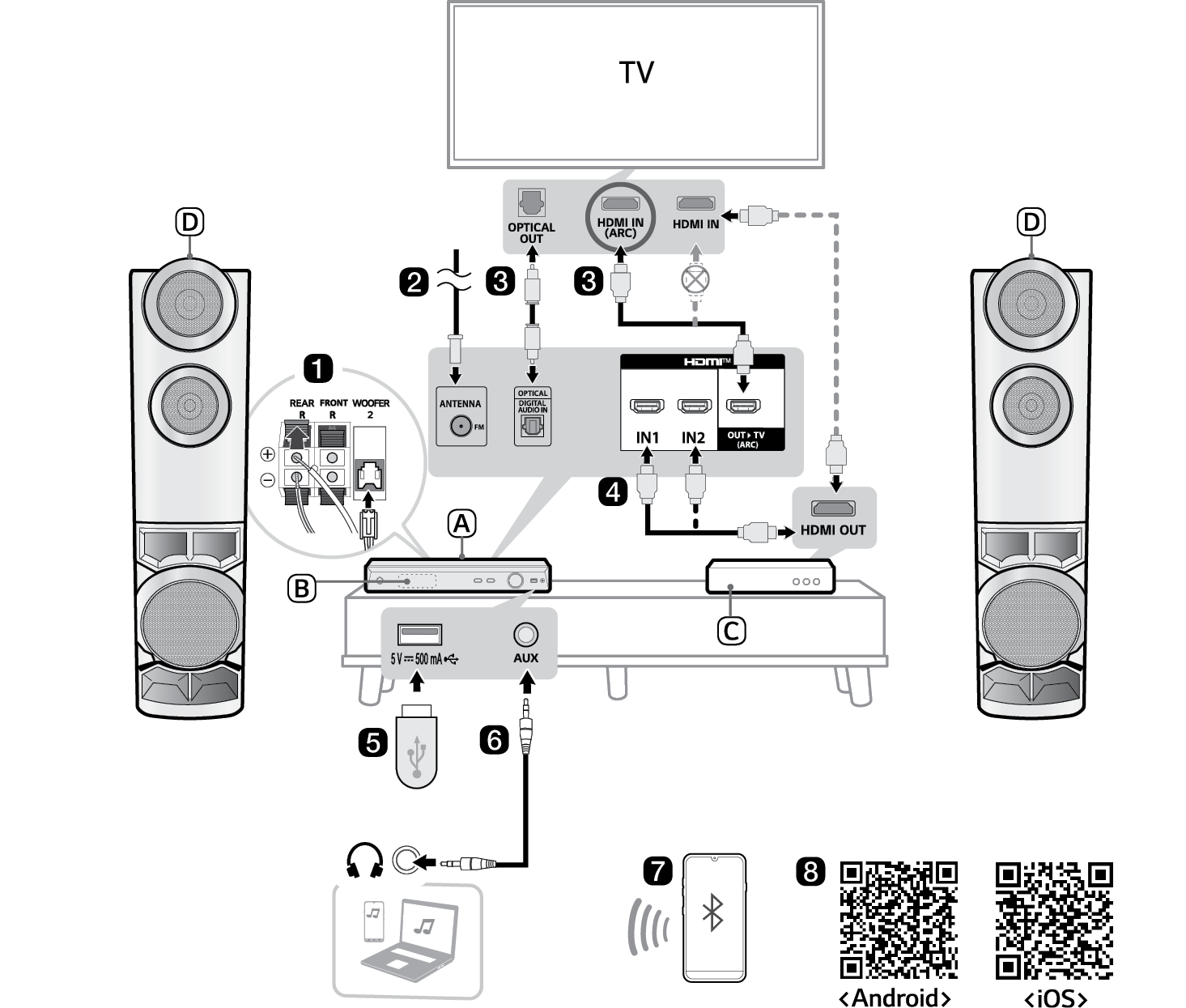

- A Receiver
- B Remote Control Receiver / Status Display
- C External Device - (Blu-ray player, game console, etc.)
- D Front and Surround (Rear) speaker with built in subwoofer
- b Connecting the supplied FM antenna ([ See “Connecting Antenna to the receiver” on page 31.)
- c Connecting the receiver to your TV via an optical cable or an HDMI cable ([ See “Connecting with an Optical Cable”, “Connecting with an HDMI Cable” on page 23, 20.)
- A Press the Power
 button to turn on the receiver.
 - B Press the Function
 button repeatedly until “OPT/HDMI ARC” appears on the status display.
 - C On your TV's settings, set the output speaker to [HDMI ARC], [Optical], or [External Speaker].
- D When the TV is properly connected to the product, “OPT”, “ARC” will appear on the status display.
- d If you are using an external device (ex. Blu-ray player, game console, etc.), connect it to the receiver via an HDMI cable. ([ See “Connecting with an HDMI Cable” on page 25.)
- e Playing Music from the USB ([ See “Connecting to a USB Storage Device” on page 45.)
- A Press the Power
 button to turn on the receiver.
 - B Plug the USB storage device into the USB terminal.
- C Press the Function
 button repeatedly until “USB” appears on the status display.
 - D Press the Play/Pause
 button to enjoy the music.
 - f Connecting a Portable Device ([ See “AUX (Portable Input) Connection” on page 30.)
- A Press the Power
 button to turn on the receiver.
 - B Connect the external device to the AUX terminal via a 3.5 mm stereo cable. Product will automatically recognised when connecting a stereo cable. “AUX” will appear on the status display.
- C Turn the external device on and start playing.
- g Connecting the product to your smartphone via Bluetooth ([ See “Connecting via Bluetooth” on page 42.)
- A Press the Power
 button to turn on the receiver.
 - B Tap the Settings
 button on your smartphone and select Bluetooth. Turn on the Bluetooth function. (
 Off >
Off >  On)
On) - C Press the Bluetooth pair
 button on the remote control. After a moment, you will see “BT READY” on the status display.
 - D Find and tap the product on your smartphone. The product appears as “LG-MR9(XX).”
- E When the product is connected to your smartphone via Bluetooth, you can see the status display change from “PAIRED” [ “Connected Bluetooth device name” [ “BT”.
- h Connecting the LG XBOOM app ([ See “Installing app” on page 53.)
- A Find the LG XBOOM app on the Google Play or App Store and install it on your smartphone.
- B Run the LG XBOOM app and use more features.
Installation